
It's Monday morning and there's an email from your store that says your best-selling planter is low in stock. You open the product and there are 2 left, because that's the low stock threshold WooCommerce came with, and you never changed it. The factory can start a new run in about four weeks, the container takes another month to arrive, and the product page is going to say out of stock for most of that time. The store knew the number was falling for weeks, and the alert only went off when it was already too late to do anything about it.
I ran into this kind of thing more than once while we were building a $3M ARR Amazon FBA and Shopify brand, and what finally fixed it for us was simple. We set the alert at the right number for each product and kept a quick, boring routine for getting from that alert to a purchase order the supplier could act on. In this guide I'll show you how to do that on a WooCommerce store with the settings WooCommerce already has, a spreadsheet for the weekly check, and the plugins and planning tools that can build the purchase order for you.
A quick product note so nothing below reads as a promise. SupplyAutomate does not connect to WooCommerce, Shopify, or Amazon, it doesn't read your stock or sales, and it can't create a purchase order when a product runs low. It works from the documents you upload, meaning supplier invoices, packing lists, freight bills, and customs entries, plus parcel and ocean container tracking, which is where your real lead times come from once a purchase order is moving.
TL;DR
- WooCommerce core sends low stock emails, and it has no purchase orders or supplier records, so the email is the trigger and the purchase order happens somewhere else.
- Turn on low stock notifications under WooCommerce > Settings > Products > Inventory, then override the low stock threshold on each product or variation so it matches that SKU's reorder point.
- Work out the reorder point from daily sales times the full lead time from purchase order to sellable stock, plus safety stock, using the reorder point formula for importers or the free lead time calculator.
- Back the email up with a weekly check, using the Low stock filter in the WooCommerce Analytics Stock report or a spreadsheet that also counts stock already on order.
- If you want the purchase order built inside WordPress, ATUM and its Purchase Orders PRO add-on can pull low stock products into a PO by supplier, and Inventory Planner by Sage turns WooCommerce sales into forecast-based purchase orders.
What WooCommerce Does When Stock Runs Low
WooCommerce's stock tools are simpler than people expect. According to the WooCommerce products settings documentation, once you enable stock management, WooCommerce keeps a count for each product and subtracts items as sales are made. You can turn on low stock and out of stock emails, send them to one or more addresses, and set a store-wide low stock threshold, and when a product's stock falls to that number, WooCommerce emails you.
That's where it stops. Core WooCommerce has no purchase order screen, no supplier records, and no lead time field, so it doesn't know who makes the product, how long a new batch takes, or that you already have 400 units on the water. The low stock email is a useful trigger, and everything after it, from choosing the quantity to sending the order to the factory, is up to you or a plugin. That's fine, as long as the email arrives early enough to matter.
Before You Start
You need three things before any of this is worth setting up. The first is admin access to WooCommerce so you can change the inventory settings and edit products. The second is a list of your active SKUs with the supplier for each one, its case pack, and the supplier's minimum order quantity, which can be a simple sheet if you don't have it anywhere else yet.
The third is a real lead time for each SKU, measured from the day you send the purchase order to the day the stock can be sold from your warehouse. For an imported product that covers production, ocean or air transit, customs clearance, and the final truck and receiving. If you haven't pulled those dates from your last few orders, the reorder point formula for importers walks through each stage, and the lead time calculator tools roundup covers a few ways to keep the number current.
Step 1: Work Out A Reorder Point For Each SKU
Here's a made-up example so you can see the math. Say you sell a ceramic planter that moves 8 units a day. The factory needs 25 days to produce it, ocean transit and port time take 24 days, and customs plus trucking to your warehouse take another 7, so the full lead time is 56 days. You'd like 14 days of safety stock on top for a late vessel or a busy weekend, which is 112 units.
The reorder point is daily demand times lead time plus safety stock, so it's (8 × 56) + 112 = 560 units. When stock drops to 560, the next purchase order should go out that day. Now compare that with WooCommerce's default threshold of 2 units, which gives you an email roughly six hours before the planter sells out and about 56 days before new stock can arrive.
The more common mistake is using the factory's production quote as the whole lead time. With 25 days instead of 56, you'd get (8 × 25) + 112 = 312 units, and 312 units only last 39 days at 8 a day. The new stock lands on day 56, so you'd be out of stock for about 17 days and miss roughly 136 sales. Our guide on how to calculate safety stock shows how to replace the round 14 days with a number based on your own demand swings once you have the history.
Step 2: Set The Low Stock Threshold Per Product
WooCommerce Inventory Settings
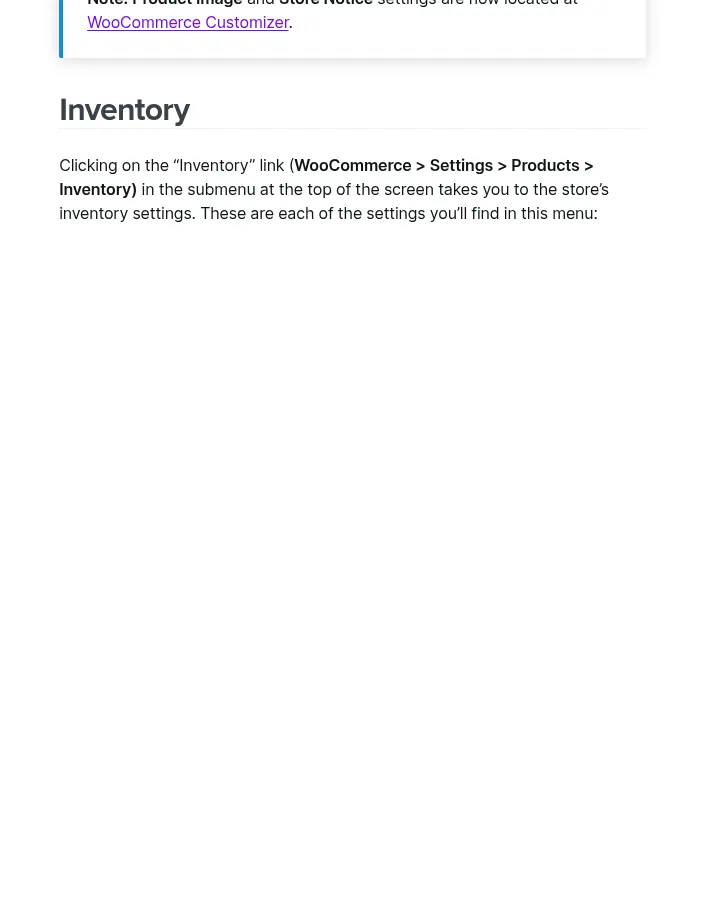
WooCommerce inventory settings in the products settings docs
Start with the store-wide settings under WooCommerce > Settings > Products > Inventory. Tick Enable stock management, tick Enable low stock notifications, and put the address of whoever places supplier orders in Notification recipient(s), since it defaults to the site's admin address, which is often an inbox nobody on the buying side reads. The store-wide Low stock threshold then becomes the fallback for any product you haven't set yourself, so give it a number that's sensible for your slower sellers.
One setting on the same screen is worth checking before you raise thresholds. If Stock display format is set to Only show stock when low, WooCommerce shows shoppers a message like "Only 2 left in stock" once a product is at or below its low stock level. With a threshold of 560, a product page could end up saying something like "Only 540 left in stock", so either switch the format to Always show stock or Never show amount, or look at a product page after you change the thresholds to make sure it reads the way you want.
Product And Variation Overrides
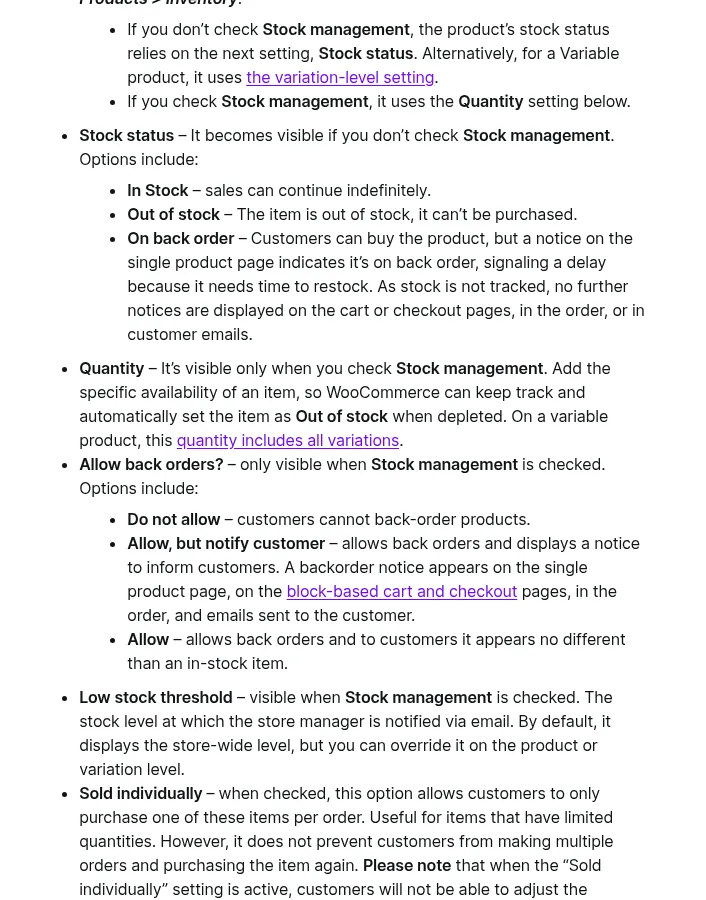
WooCommerce Product Editor settings, Inventory section
The per-product threshold is where the reorder point actually goes. The WooCommerce Product Editor settings documentation says the Low stock threshold field appears on a product's Inventory tab once Stock management is checked, and that it shows the store-wide level by default until you override it on the product or variation. Open each product, check Stock management, and type in the reorder point you worked out in Step 1.
Variable products need one extra look. The variable products documentation says each variation can carry its own stock quantity and low stock threshold, and a variation without one falls back to the product-wide threshold. If your sizes or colors sell at very different speeds, set the threshold on each variation, because a single number on the parent will fire too early for the slow ones and too late for the fast ones.
Once that's done, the low stock email becomes a reorder alert. Test it on one product by editing its stock down past the threshold, or by placing a test order, and make sure the email lands where you expect it.
Step 3: Back Up The Email With A Weekly Check
WooCommerce Analytics Stock Report
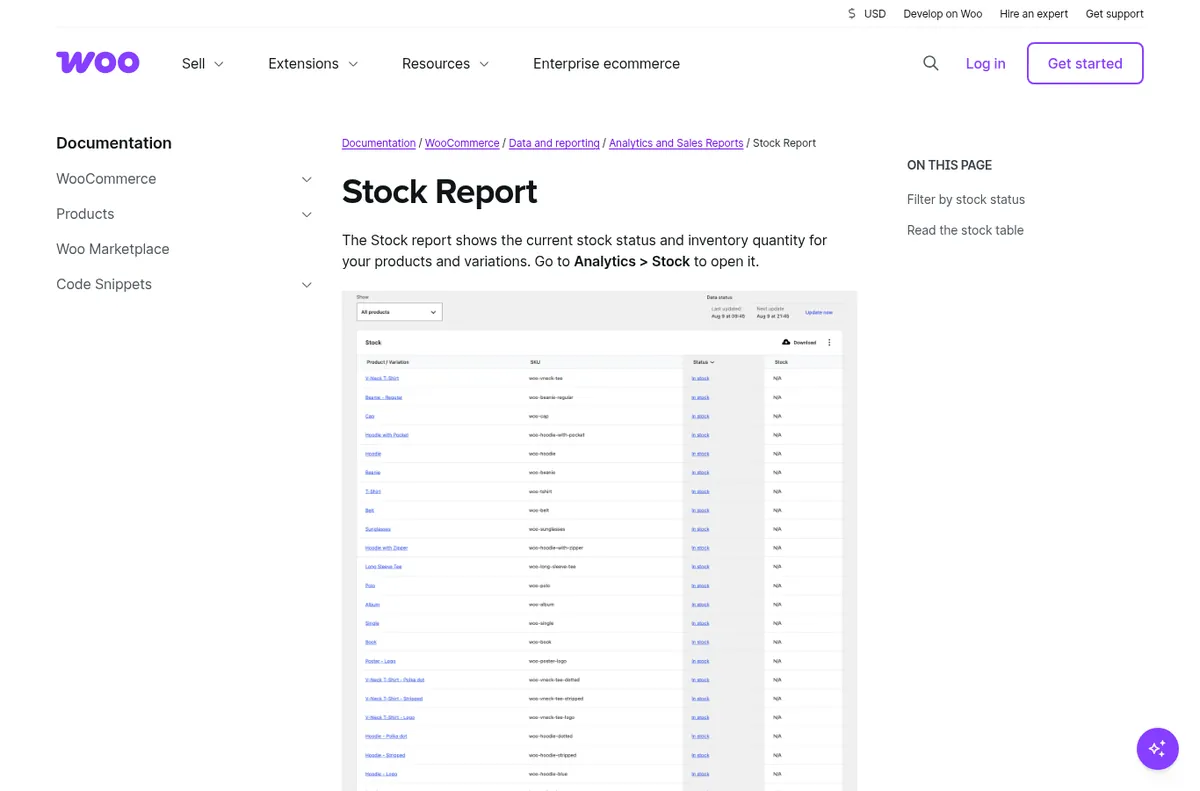
WooCommerce Analytics Stock report documentation
An email is easy to miss, so I'd pair it with a short weekly review. The WooCommerce Stock report documentation says you open it under Analytics > Stock, and the Show menu filters the table to products that are out of stock, low stock, in stock, or on backorder. Filter to low stock every Monday and you have the list of SKUs that crossed their reorder point, with their SKU and current stock, and you can download the table for your sheet.
The report has the same blind spot as the email, which is that WooCommerce only counts what's on the shelf. A product you reordered three weeks ago will still show as low stock because those units are on a ship, so the weekly check is also when you cross off anything that's already on an open purchase order. Skipping that step is how a store ends up with two purchase orders for the same SKU.
A Reorder Sheet In Google Sheets
Google Sheets product page
For most stores under a few hundred SKUs, a sheet in Google Sheets or Excel is the cheapest way to see the whole pipeline. Give each SKU a row with current stock from the Stock report download, units on open purchase orders, daily sales from the Analytics Products report over the last 30 or 60 days, lead time in days, and safety days. Add a column for total pipeline (stock plus on order) and a reorder point column that multiplies daily sales by lead time plus safety days.
Add a conditional formatting rule that turns the row red when the total pipeline is at or below the reorder point, then sort by it so the SKUs that need a purchase order sit at the top. This is the only version of the alert that knows what's already coming, which is why I'd keep it even after you add a plugin. Our guide to moving from Excel to automated purchase order tracking covers when a sheet like this starts to creak.
Step 4: Turn The Alert Into A Purchase Order
Once a SKU crosses its reorder point, the order itself is the same work whatever tool you use. Size the quantity against the supplier's minimum with the MOQ calculator and round to full cartons, then write the purchase order with the SKU, quantity, unit price, Incoterm, and the ship date you need, which our guide to creating a purchase order covers line by line. Agree the deposit before production starts, and 30/70 payment terms with Chinese suppliers walks through the most common split.
If you want the purchase order to live inside WordPress next to your stock, or you want software to suggest the quantity, the tools below are the ones I'd look at first. Our roundup of the best inventory management software for WooCommerce stores compares more options, including Zoho Inventory, Cin7, and Katana.
Plugins And Tools That Build WooCommerce Purchase Orders
ATUM And Purchase Orders PRO
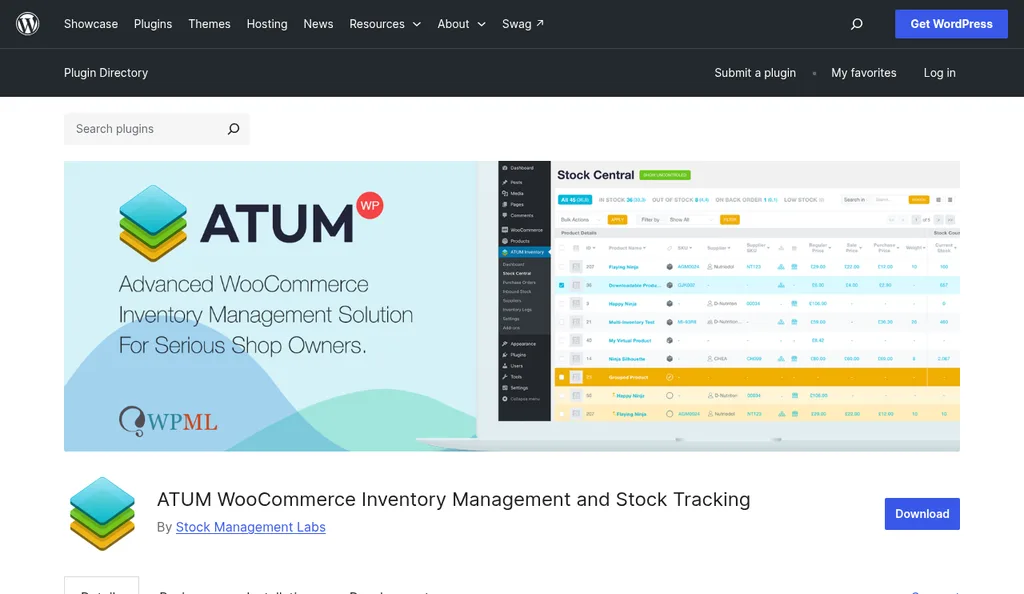
ATUM on WordPress.org
ATUM by Stock Management Labs is a free WooCommerce plugin that adds the purchasing pieces core WooCommerce leaves out. Its WordPress.org listing says it adds suppliers, purchase prices, purchase orders with PDF export, and an Inbound Stock view, and pending incoming stock from open purchase orders shows up in its Stock Central screen. That last part matters for this workflow, because it's an easy way to see what's already on order before you reorder.
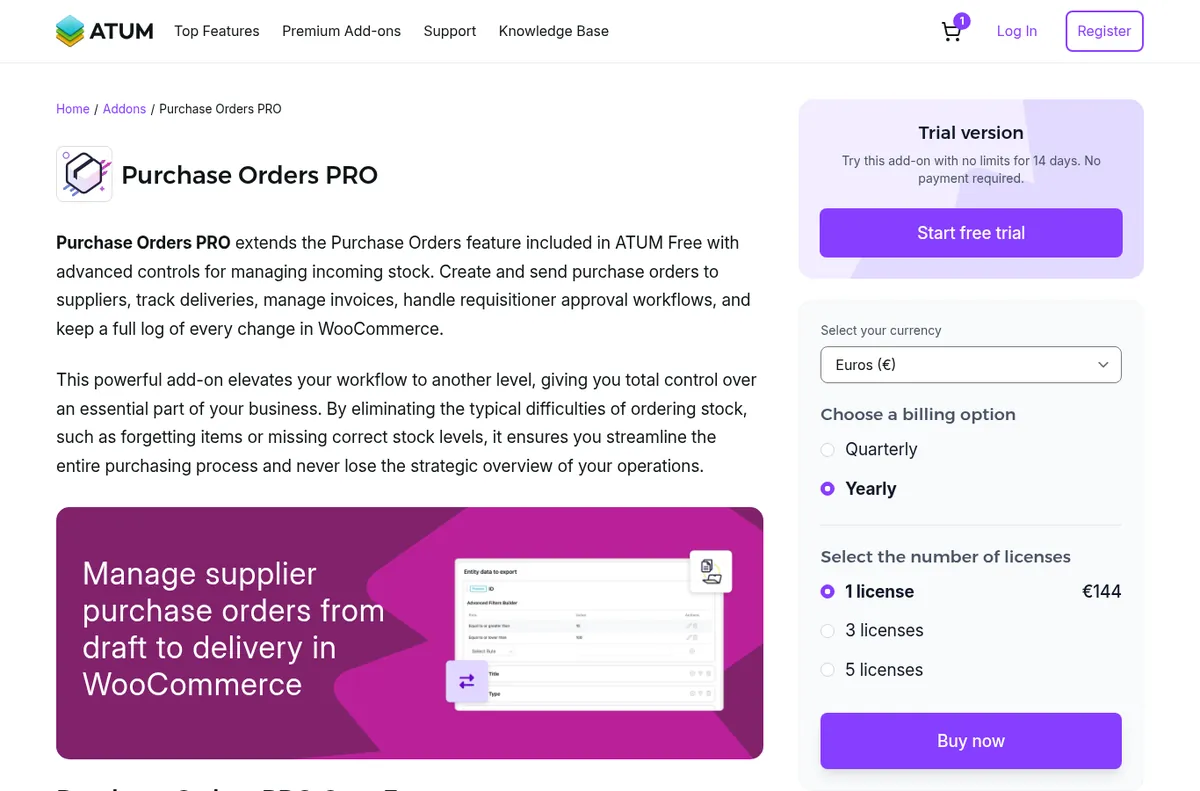
ATUM Purchase Orders PRO add-on page
The paid Purchase Orders PRO add-on goes further, with purchase orders you send to suppliers, delivery tracking with partial deliveries, attached supplier invoices, and an approval step. ATUM's help page for PO items says that once you pick a supplier, you can add all of that supplier's out of stock products, products that reached their low stock threshold, or products in restock status to the purchase order in one go. The same page shows a recommended order quantity based on last week's sales, the supplier's lead time, and incoming stock, and I'd still check every quantity against your own reorder math before you send it.
The add-on page listed a 14-day free trial and €144 a year for one license when I looked in October 2026. It's a good fit if you want everything inside WordPress and you're comfortable reviewing each purchase order by hand.
Inventory Planner By Sage
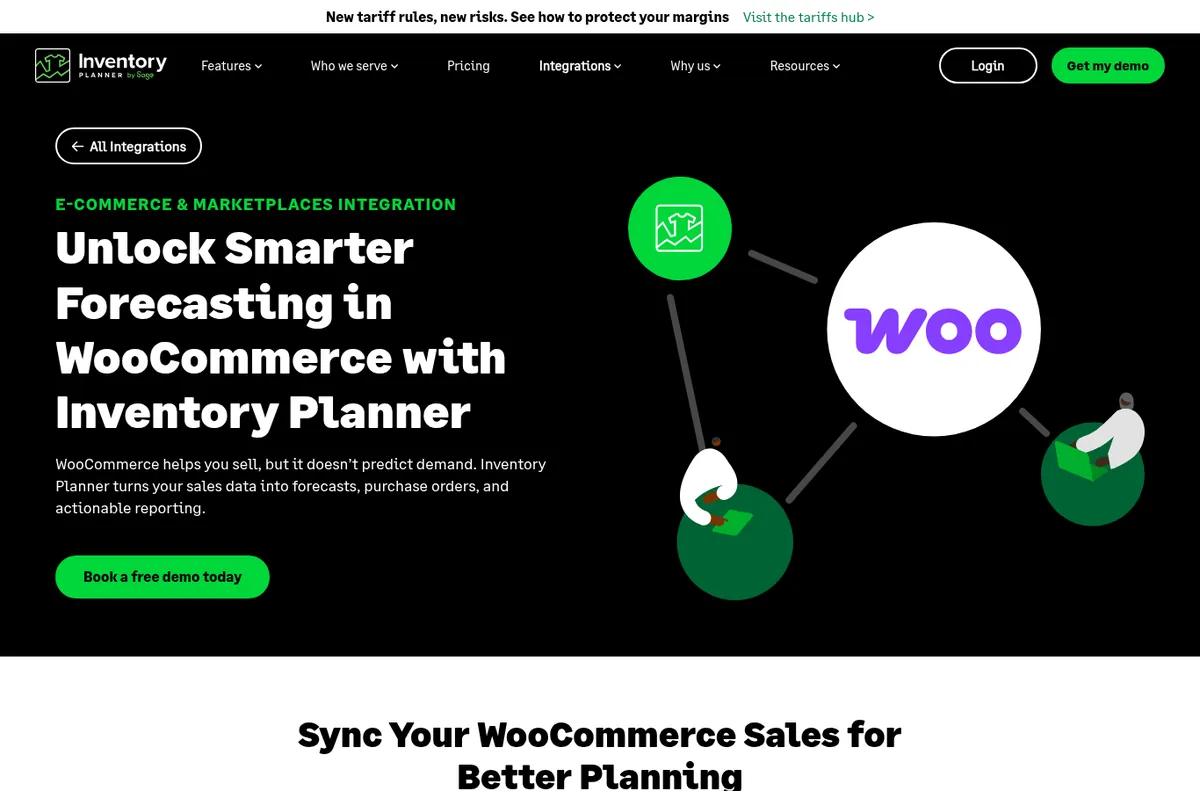
Inventory Planner by Sage WooCommerce integration page
Inventory Planner by Sage is a forecasting and purchasing tool, and its WooCommerce integration page says it imports your product and sales data and turns it into demand forecasts, replenishment recommendations, and purchase orders. Its purchasing page describes supplier settings like minimum order quantity and payment terms that get applied to recommendations, and purchase orders placed directly from them, including scaling an order to fill a shipping container.
This replaces the flat threshold with a forecast, which helps most when demand is seasonal or you carry a lot of SKUs. Its pricing page says pricing depends on the volume of inventory you manage and is quoted through a request form, so it makes more sense for a store where the weekly reorder sheet already takes hours. The purchase orders it creates live inside Inventory Planner.
Where SupplyAutomate Fits
SupplyAutomate Lead Time Calculator And Purchase Orders
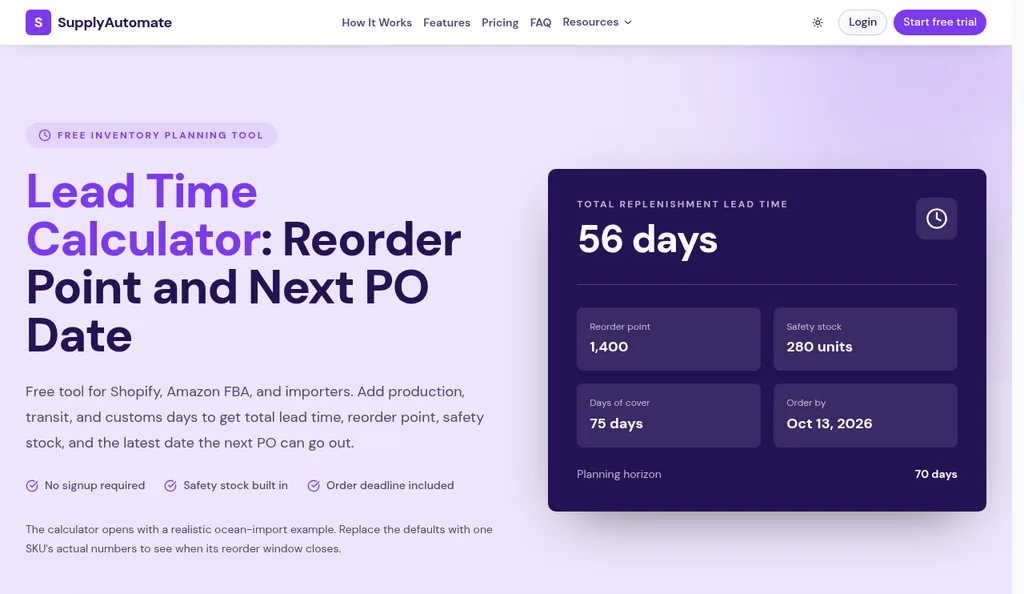
SupplyAutomate lead time calculator with its default example
SupplyAutomate won't send the low stock alert, since it doesn't read WooCommerce. Where it helps is the lead time behind the threshold, which is the number most stores get wrong. The free lead time calculator adds up production, transit, and customs days with a safety buffer and returns the total lead time, reorder point, safety stock, and the latest date the next PO can go out, so you can check the number you type into each product's low stock threshold. If you only need a one-off order, the free purchase order creator builds one you can download as a PDF.
Once the order is placed, the SupplyAutomate app tracks it through production and shipping. You upload the supplier invoice, packing list, freight bill, and customs entry, they're read and filed on the purchase order, and parcel and ocean container tracking shows where the shipment is, so the real time from PO to your warehouse is in your records for the next reorder point. It also works out landed cost per unit from factory price, freight, duty, and samples, and exports to CSV or Excel for your reorder sheet. Plans are on pricing, the Shopify ERP page shows how the same setup works if you also sell on Shopify, and if you'd rather hand off supplier follow-up and freight entirely, our Outsourced Supply Chain Manager service runs purchase orders and shipments for you.
Troubleshooting The Low Stock Email
If the email never arrives, check that Stock management is ticked both in the store settings and on the product itself, since a product without it has no count for WooCommerce to compare against. Then check that Enable low stock notifications is on and that the recipient address is right. If the setting looks fine and nothing comes through, send yourself a test order and look at your site's email delivery, because WordPress mail often needs an SMTP plugin to land reliably.
If the email arrives for the wrong products, look for variations without their own threshold that are falling back to the parent or the store-wide number. If you get duplicate purchase orders, it usually means two people or two tools are both acting on the same alert, so pick one place where purchase orders get created and have everyone else work from it. And if the alert fires on time but the stock still runs out, the lead time is too short, which you can fix by comparing the date on your last purchase order with the date the stock was actually sellable.
Frequently Asked Questions
Can WooCommerce Automatically Create Purchase Orders When Stock Is Low?
Not on its own. Core WooCommerce sends a low stock email when a product reaches its threshold, and it doesn't have purchase orders or supplier records. A plugin like ATUM with Purchase Orders PRO can pull low stock products into a purchase order by supplier, and Inventory Planner can create purchase orders from forecasts, and you still review the order before it goes to the supplier.
How Do I Set A Low Stock Threshold For One Product In WooCommerce?
Open the product, go to the Inventory tab, check Stock management, and enter a number in Low stock threshold. It shows the store-wide level until you override it, and variations can carry their own threshold too. Make sure Enable low stock notifications is ticked under WooCommerce > Settings > Products > Inventory, or the email won't send.
What Number Should I Use For The WooCommerce Low Stock Threshold?
Use the SKU's reorder point, which is daily sales times the full lead time from purchase order to sellable stock, plus safety stock. For an imported product that's often hundreds of units, which is far above the default of 2. The worked example above shows how using the factory's production time alone leads to a stockout of about two and a half weeks.
Does The WooCommerce Low Stock Email Count Stock On Order?
No. WooCommerce only counts the stock in your store's inventory, so units on an open purchase order or on a ship don't count until you receive them and update stock. That's why I'd keep a weekly sheet or use a plugin like ATUM that shows inbound stock, so you don't reorder something that's already coming.
Can SupplyAutomate Create Purchase Orders From WooCommerce Stock?
No. SupplyAutomate doesn't connect to WooCommerce, Shopify, or Amazon and doesn't read stock or sales, so the alert has to come from WooCommerce, a spreadsheet, or a plugin. It helps once you've decided to reorder, by tracking production and shipments from the documents you upload, recording real lead times, calculating landed cost per unit, and exporting to CSV or Excel.
Starting With Your Top Ten Products
If I were setting this up this week, I'd pick the ten products that bring in the most money, pull the dates from their last two purchase orders, and work out a real lead time and reorder point for each. Then I'd type those numbers into each product's low stock threshold, point the notification email at the person who places orders, and check the stock display format so shoppers don't see a strange message. That's an afternoon of work, and it turns an email you've been ignoring into one that arrives with enough time to act.
After that, the Monday routine is what keeps it honest. Filter the Stock report to low stock, cross off anything already on order, and update the lead time on any SKU whose last shipment ran long. When that routine starts taking longer than the reorders themselves, that's the point where ATUM or Inventory Planner earns its price. If the factory side is where things keep slipping, our guides to partial shipments and late shipment alerts are good next reads.
Related Guides
- Reorder Point Formula For Importers (When To Buy)
- How To Calculate Safety Stock (Formula + Excel)
- Best Inventory Management Software For WooCommerce Stores
- Landed Cost Calculator For WooCommerce Sellers (2026 Guide)
- How To Turn Shopify Reorder Points Into Purchase Orders
- How To Set Up Amazon Seller Central Reorder Alerts
- How To Create A Purchase Order For FBA And Shopify Imports
- Best MOQ Calculator Tools For Ecommerce Sellers
- Best Lead Time Calculator Tools For 2026 (Ranked)
- Excel To Automated Purchase Order Tracking: A How-To Guide
- How To Reconcile A Supplier Invoice To A Purchase Order
- How To Organize Supplier Invoices By Purchase Order For Importers