
A container of your best seller cleared customs on Friday, the warehouse says it's checked in, and on Monday your product page still says sold out. Somebody eventually finds the problem: the stock was received into the wrong location, so Shopify thinks it's sitting somewhere that doesn't ship online orders. Two days of sales went to a competitor while the units sat on a shelf. Nothing was wrong with the supplier or the freight forwarder, and the gap was entirely in how the store recorded its own inventory.
I've made versions of that mistake myself while building a $3M ARR Amazon FBA and Shopify brand, and most of them came from not really understanding what Shopify was counting. Shopify's own inventory tools have grown a lot over the last year, with native purchase orders, inventory transfers, stock counts, and a set of inventory reports, and Stocky is gone. In this guide I'll walk through how I'd set up Shopify inventory management for an importing brand today, step by step, using what's built into the admin first and pointing out where a spreadsheet or an app starts to make sense.
A quick product note so nothing below reads as a promise. SupplyAutomate does not connect to Shopify, Amazon, or WooCommerce, and it doesn't read or change your Shopify stock. It works from the documents you upload, meaning supplier invoices, packing lists, freight bills, and customs entries, plus parcel and ocean container tracking, so it helps with the purchase orders and shipments that feed your inventory and with landed cost per unit, which you can export to CSV or Excel.
TL;DR
- Shopify inventory lives at locations, and every unit sits in one of five states: On hand, Available, Committed, Unavailable, or Incoming. Learn these before you change anything, because each report and alert reads a different one.
- Turn on Track quantity for the products you stock, review your locations, and load starting quantities with the bulk editor or an inventory CSV.
- Order from suppliers with Shopify's native purchase orders, then receive the goods on the linked inventory transfer, accepting or rejecting units and adding freight and duty as cost adjustments.
- Record every manual change with a reason, run stock counts by location, and review the Inventory sold daily by product and ABC analysis reports each week.
- Shopify has no reorder point field, so pair a real reorder point with a Shopify Flow alert, and add a planning app like Prediko or Inventory Planner once working out quantities by hand eats your week.
Table of Contents
- What Shopify Inventory Management Covers Today
- Before You Start
- Step 1: Set Up Your Locations
- Step 2: Learn The Five Inventory States
- Step 3: Turn On Tracking And Load Starting Quantities
- Step 4: Receive Supplier Stock With Purchase Orders And Transfers
- Step 5: Record Adjustments And Run Stock Counts
- Step 6: Read The Inventory Reports Every Week
- Step 7: Add Reorder Points And Low Stock Alerts
- If You Also Sell On Amazon
- When To Add A Spreadsheet Or An Inventory App
- Where SupplyAutomate Fits
- Common Shopify Inventory Mistakes
- Frequently Asked Questions
- Where I'd Start This Week
- Related Guides
What Shopify Inventory Management Covers Today
The Shopify Help Center inventory section now covers four jobs inside the admin: setting up locations, tracking quantities and inventory states, adjusting and moving stock with adjustments, stock counts, and transfers, and ordering from suppliers with purchase orders that link to a transfer for receiving. That's a real inventory system for a single brand with a warehouse or two, and it's a big change from a few years ago when most of this needed an app.
What it still doesn't do is plan for you. There's no reorder point or lead time field on a product, no forecast, and nothing that adds freight and duty into the cost you see per unit. Stocky, the app many stores used for purchase orders and suggested reorders, stopped working on August 31, 2026, which we covered in Stocky alternatives for Shopify. If you're still deciding whether you need software at all, our roundup of the best ecommerce inventory management software and the Shopify supply chain app review compare the options, and this guide sticks to the setup itself.
Before You Start
You need admin access to Shopify, a list of your active SKUs, and a decision on which products you actually stock. Shopify's guide to setting up inventory for the first time suggests tracking physical products you stock and reorder from suppliers, and leaving tracking off for digital products, services, made to order items, and gift cards. For an importing brand that usually means tracking almost everything, plus deciding how to handle any items a supplier ships direct.
It also helps to have your supplier list ready with the SKUs each one makes, their case packs, and minimum order quantities. You'll use those when you set up purchase orders in Step 4, and having them in one sheet now saves a lot of clicking later.
Step 1: Set Up Your Locations
Everything in Shopify inventory is counted per location. Shopify describes locations as the places you store and fulfill inventory, such as warehouses, retail stores, and fulfillment services, and every store starts with one default location. If you ship everything from one warehouse, rename the default location so it matches and you're done with this step.
If you use a 3PL plus your own storage, or a retail shop and a warehouse, add each one as a location. Shopify's page on managing inventory across multiple locations says each location's inventory is tracked separately and can't be pooled, and a new location starts with no stock and no active products. It also says inventory at locations that don't fulfill online orders still counts toward your total but not toward the quantity shoppers see online, which is exactly the trap in the story at the top of this post. Before you receive any stock, check which locations fulfill online orders and make sure your main warehouse is one of them.
Step 2: Learn The Five Inventory States
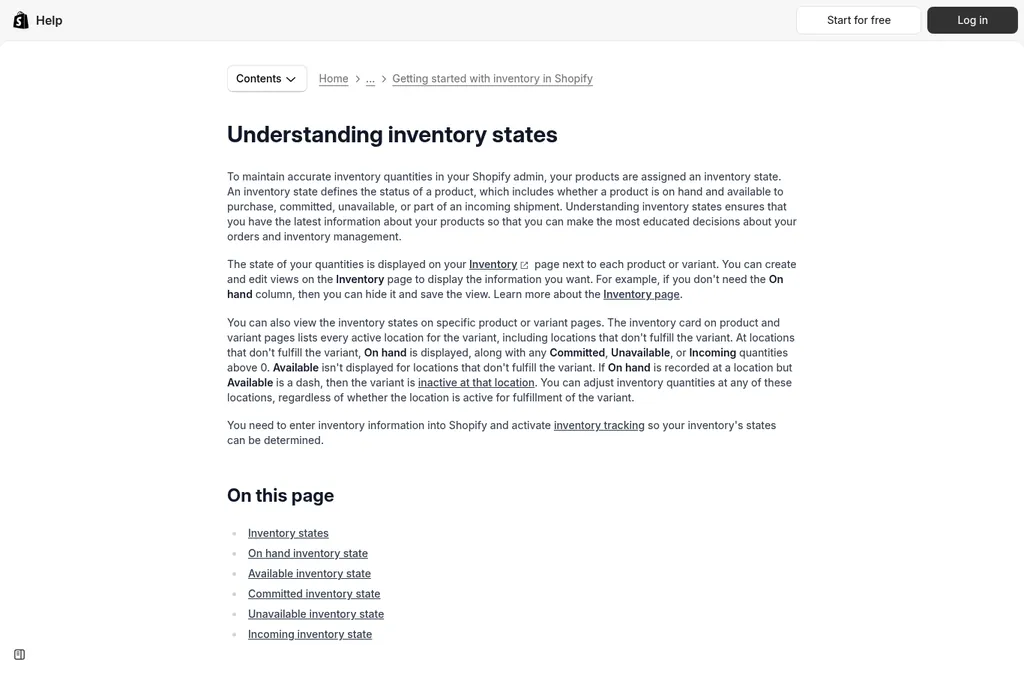
Shopify Help Center inventory states page
This is the part I wish someone had explained to me early. According to Shopify's inventory states guide, On hand is every unit at a location, and it's the sum of three other states. Available is what you can sell, Committed is set aside for unfulfilled orders, draft orders, or transfers marked ready to ship, and Unavailable is stock that's physically there but held as damaged, quality control, safety stock, or another reason. Incoming sits outside On hand and covers units on the way from transfers, purchase orders, or apps, which only become Available once they're received.
Here's a made-up example for one SKU at one warehouse. You have 300 units on the shelf, 40 are in orders that haven't shipped, and 12 came in with cracked boxes and are marked Damaged, so On hand is 300, Committed is 40, Unavailable is 12, and Available is 248. Another 1,200 units are on a purchase order that's on the water, so Incoming shows 1,200. The storefront sells against the 248, your reorder decision should look at 248 plus the 1,200, and the 12 damaged units are a supplier claim waiting to happen.
Knowing which number a report uses matters more since a recent change. Shopify's inventory reports page says that starting October 1, 2026, inventory reports measure stock by On hand instead of Available, so reported quantities can look higher than before, while data before that date still shows Available. If your month-end numbers jumped this month without any new stock arriving, that's probably why.
Step 3: Turn On Tracking And Load Starting Quantities
Open each product you stock, and if it has variants, open each variant. In the Inventory section, turn on Track quantity, enter the Available units at each location, and choose what happens at zero. The default is to stop selling when stock runs out, and Shopify's page on selling out of stock products explains Continue selling when out of stock, which is useful for preorders while a container is on the way but will happily oversell if you forget you turned it on.
Doing this one product at a time is fine for a small catalog. For anything bigger, Shopify lets you set quantities in the bulk editor or upload an inventory CSV file, and its multi-location page says the bulk editor handles up to 50 products at a time, with CSV recommended for catalogs over 100 products. I'd do a physical count first so the starting numbers are real, then test the setup by placing a test order and checking that Available drops and Committed rises by the same amount.
Step 4: Receive Supplier Stock With Purchase Orders And Transfers
Shopify Purchase Orders
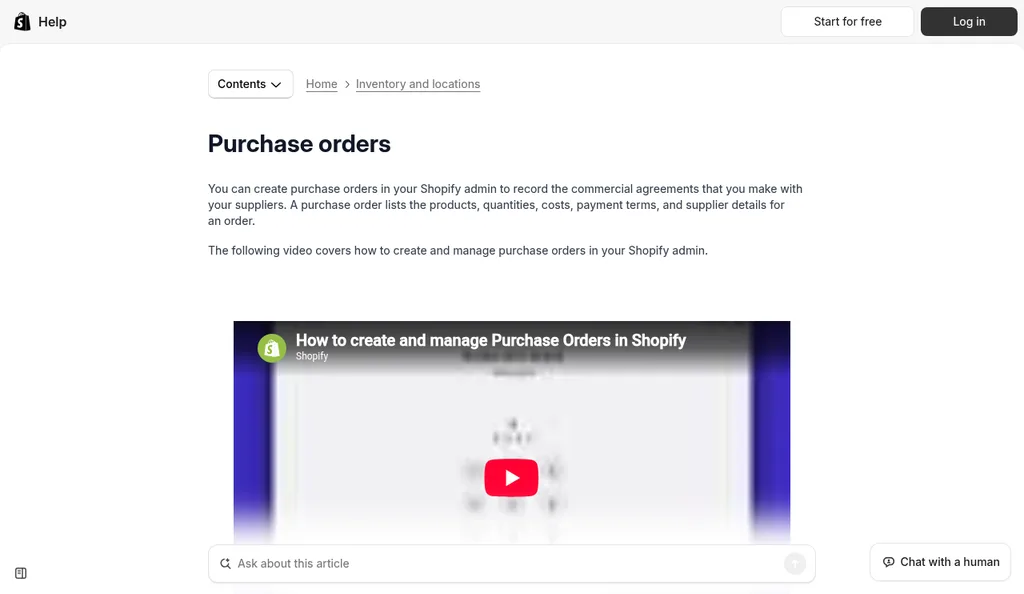
Shopify Help Center purchase orders page
When you reorder, create the order in Products > Purchase orders. Shopify's guide to creating purchase orders says a PO holds a supplier, a destination location, products, payment terms, supplier currency, and a cost summary, and once you've ordered a product from a supplier before, its supplier SKU, cost, and tax fill in from the earlier purchase orders. You can save it as a draft, export it as a PDF for the supplier to review, then mark it as Ordered once they confirm, which can't be reversed.
What goes on the purchase order is the same whatever tool you use, and our guide to creating a purchase order covers it line by line. If you're comparing Shopify's native POs with dedicated tools, see the best purchase order software for Shopify stores. The thing to remember is that a Shopify PO records the agreement with the supplier, and the stock only moves when you receive it on the linked transfer.
Shopify Inventory Transfers
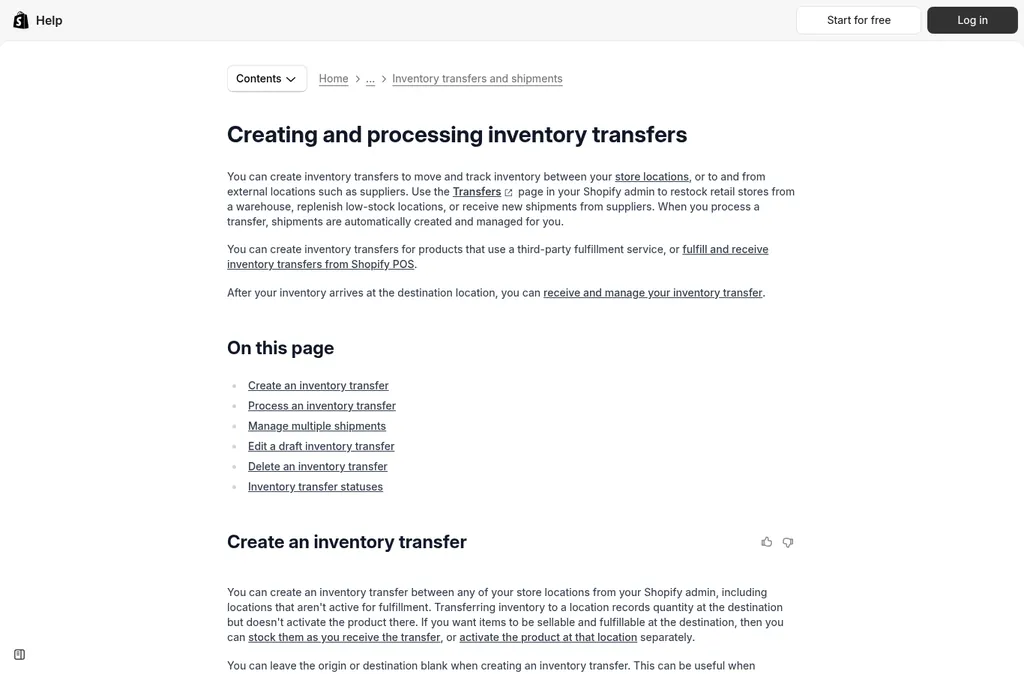
Shopify Help Center inventory transfers page
After you mark a PO as Ordered, Shopify's page on creating an inventory transfer from a purchase order says the transfer is pre-filled with the same supplier, items, and quantities, and it handles shipments, receiving, and cost adjustments. Once the transfer is in transit, the units show as Incoming at the destination. On the shipment you can add a tracking number, carrier, and expected arrival date, which is the closest Shopify gets to tracking your container.
When the goods land, receive them on the transfer. Shopify's receiving guide says you accept, reject, or cancel each line by quantity, accepted units become Available, rejected units are recorded without changing inventory, and a transfer with some items still to come stays In progress until the rest arrive. That covers the common import case where the factory ships 1,800 of 2,000 units now and the balance later, which we wrote about in tracking partial shipments from suppliers.
The same page on linked transfers says you can add shipping, customs duties, and other fees as cost adjustments on each shipment, and the cost summary then compares the agreed PO cost with the actual cost to receive the goods. That's useful for seeing what an order really cost. Shopify's help doesn't say these adjustments update the variant's cost per item, so I'd still work out landed cost per unit separately and update that field yourself, which our guide on whether Shopify cost tracking is enough for landed cost walks through.
Step 5: Record Adjustments And Run Stock Counts
Adjustments With Reasons
Every manual change should say why it happened. Shopify's adjusting inventory guide offers Set to, for an exact number after a count, and Adjust by, where you pick where stock came from and where it went, such as Inventory addition, Inventory removal, or an Unavailable state like Damaged. Each edit can carry a reason, and it all lands in the product's adjustment history.
The adjustment history page says you can see who made each change, when, and how it moved each state, but only for the last 180 days on the product itself. For anything older, the Inventory adjustment changes report lets you filter by SKU, location, staff member, app, and reason. If your stock keeps drifting, that report is where you'll find out whether it's damage, picking errors, or an app quietly overwriting numbers.
Stock Counts
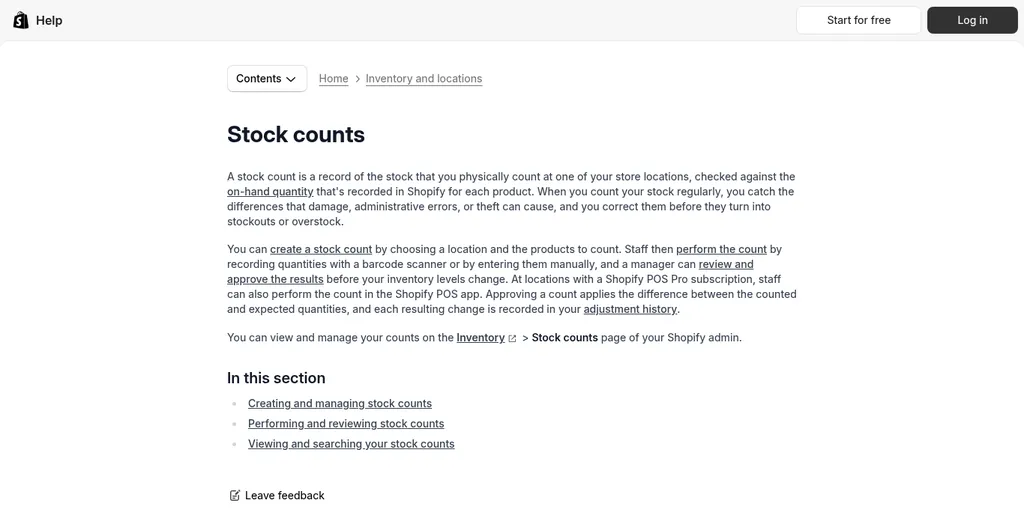
Shopify Help Center stock counts page
Shopify now has native stock counts under Inventory > Stock counts. You choose a location and the products to count, staff record quantities with a barcode scanner or by hand, and a manager reviews and approves the count before inventory changes. Approving applies the difference between counted and expected quantities, and each change goes into the adjustment history.
I'd count your top sellers every month and everything else once a quarter, since a full count of a big catalog is painful enough that it tends not to happen. Count right after a big receipt too, because that's when a miscounted carton is easiest to trace back to the packing list. Comparing the count against the supplier's packing list and invoice is also how you catch short shipments before you've paid the balance, and our guide on how to reconcile a supplier invoice to a purchase order covers that check.
Step 6: Read The Inventory Reports Every Week
Inventory Sold Daily By Product
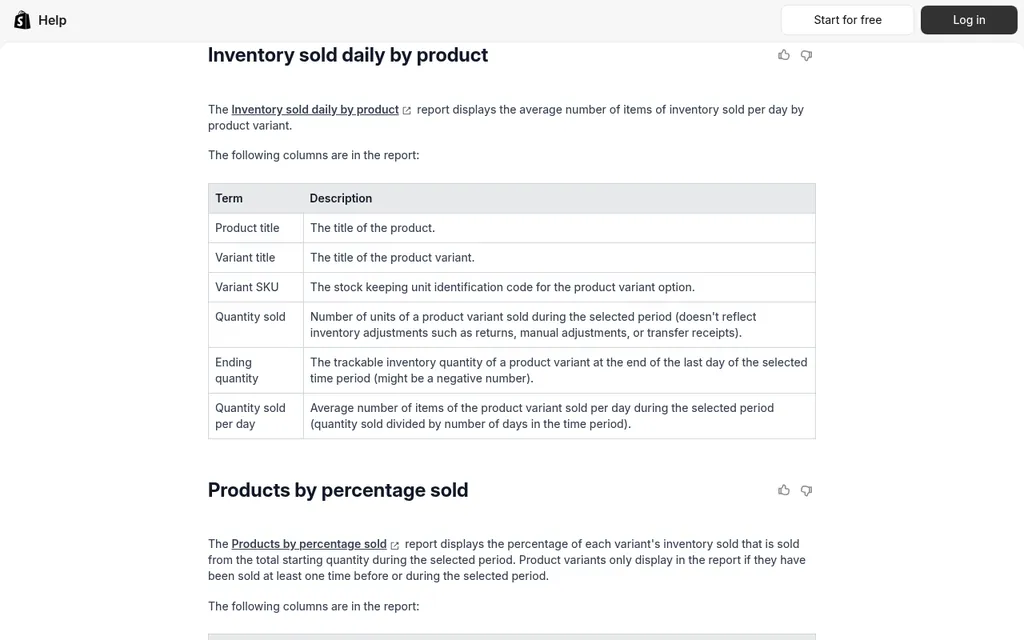
Shopify Help Center inventory reports page
Under Analytics > Reports, filter the category to Inventory and you'll find month-end snapshot and value reports, Inventory sold daily by product, Products by percentage sold, ABC product analysis, sell-through rate, inventory remaining, and the adjustment reports. The one I use most is Inventory sold daily by product, because its quantity sold per day column is the daily demand number in a reorder point. Shopify notes it counts units sold and ignores returns, manual adjustments, and transfer receipts, so it's a clean sales rate.
The month-end inventory value report multiplies On hand units by each variant's cost per item. That's only as accurate as the cost you entered, so if cost per item is still the factory price, the value you see leaves out freight and duty. Fixing that number once per shipment makes this report, and your margins, much more trustworthy.
ABC Analysis
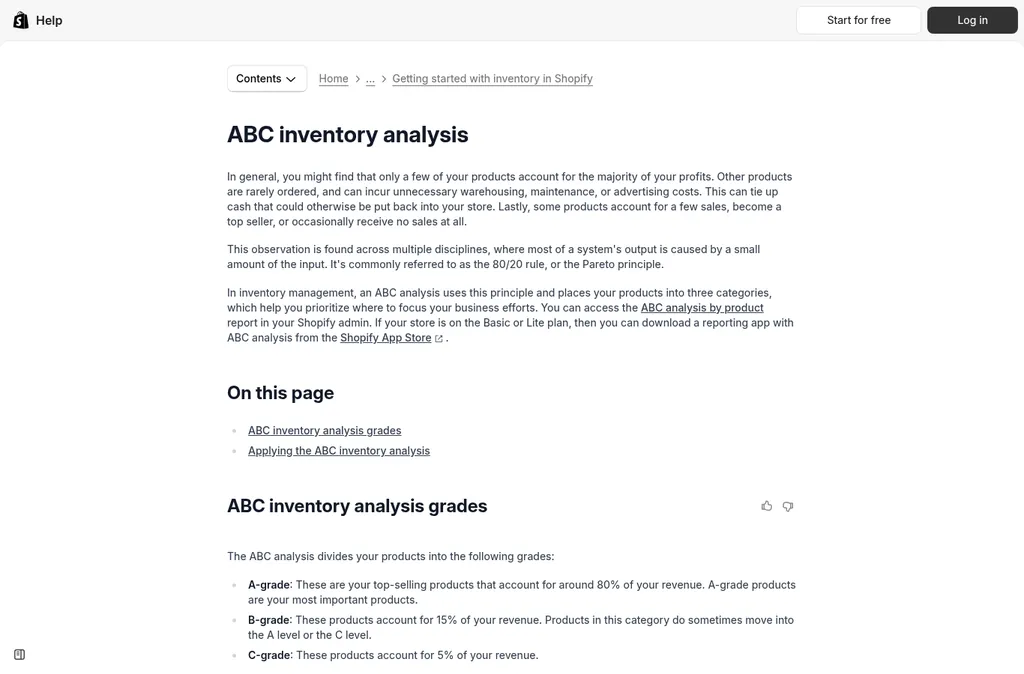
Shopify Help Center ABC inventory analysis page
Shopify's ABC inventory analysis guide grades products by revenue: A for the products that make up around 80% of revenue, B for about 15%, and C for about 5%. It says the report is in your admin as ABC analysis by product, and stores on the Basic or Lite plan need a reporting app from the Shopify App Store instead. The grade is based on retail price before discounts and ignores cost, so a high revenue product with thin margins can still grade as A.
I use the grades to decide where my attention goes. A products get the tightest reorder points, the most frequent counts, and a buffer of safety stock, while C products get ordered less often and are the first place to look when cash is tight. Our guide on how to calculate safety stock shows how to size that buffer for your A items.
Step 7: Add Reorder Points And Low Stock Alerts
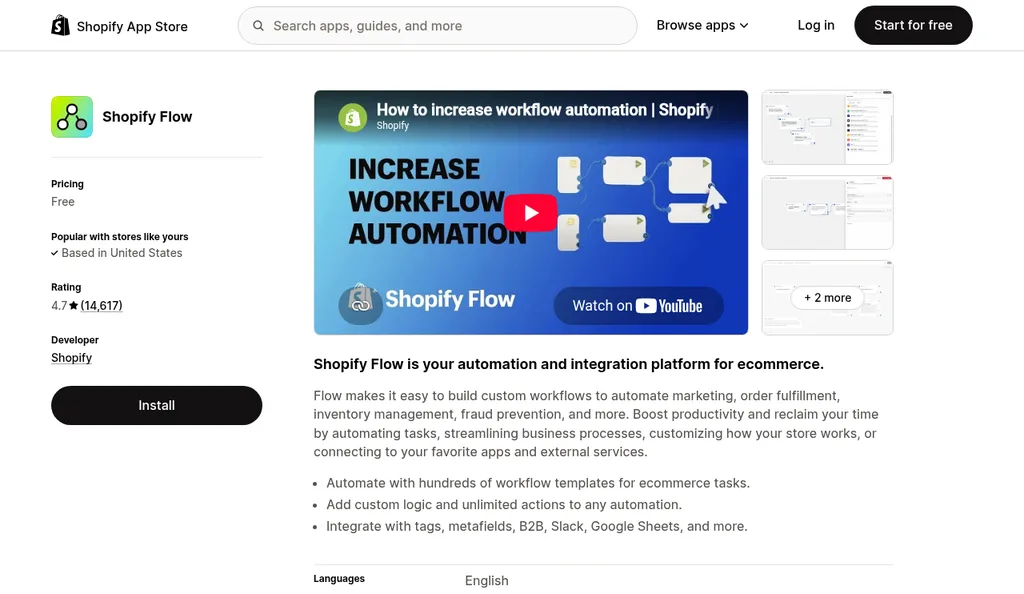
Shopify Flow on the Shopify App Store
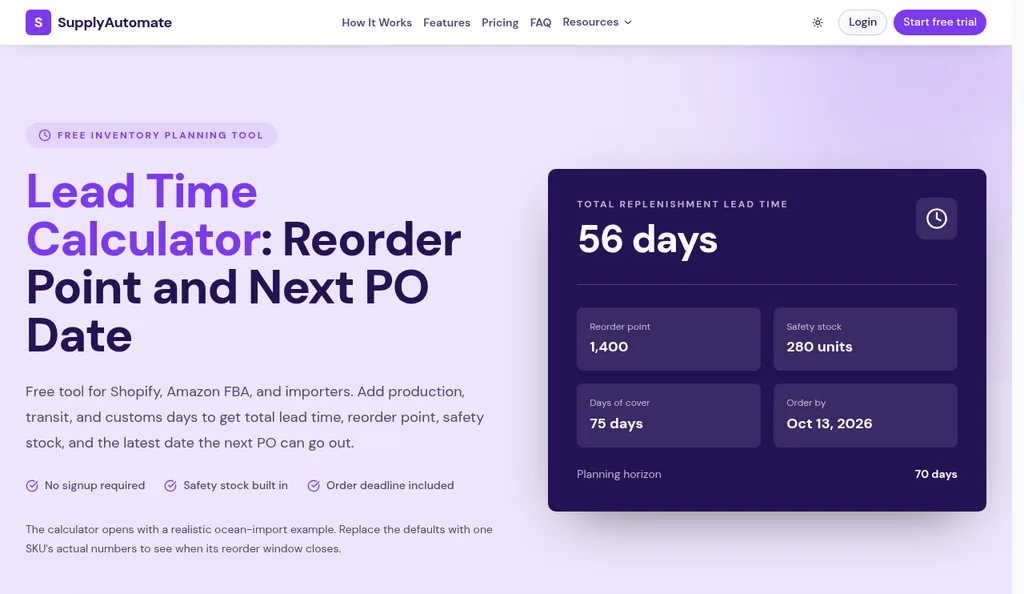
Shopify has no reorder point field, so you have to bring that number yourself. The reorder point is daily sales times the full lead time from purchase order to sellable stock, plus safety stock, and the lead time for an imported product usually includes production, ocean transit, customs, and receiving. Our reorder point formula for importers walks through each piece, and the free lead time calculator adds them up for you.
Once you have the number, store it in a variant metafield and use Shopify Flow, which is free, to send an email or Slack message when stock crosses it. We wrote the full setup in how to turn Shopify reorder points into purchase orders, including the catch that Flow compares against the quantity Shopify tracks and can't create a Shopify purchase order for you. When the alert fires, check Incoming first, because a SKU with a full container on the water doesn't need a second order.
If You Also Sell On Amazon
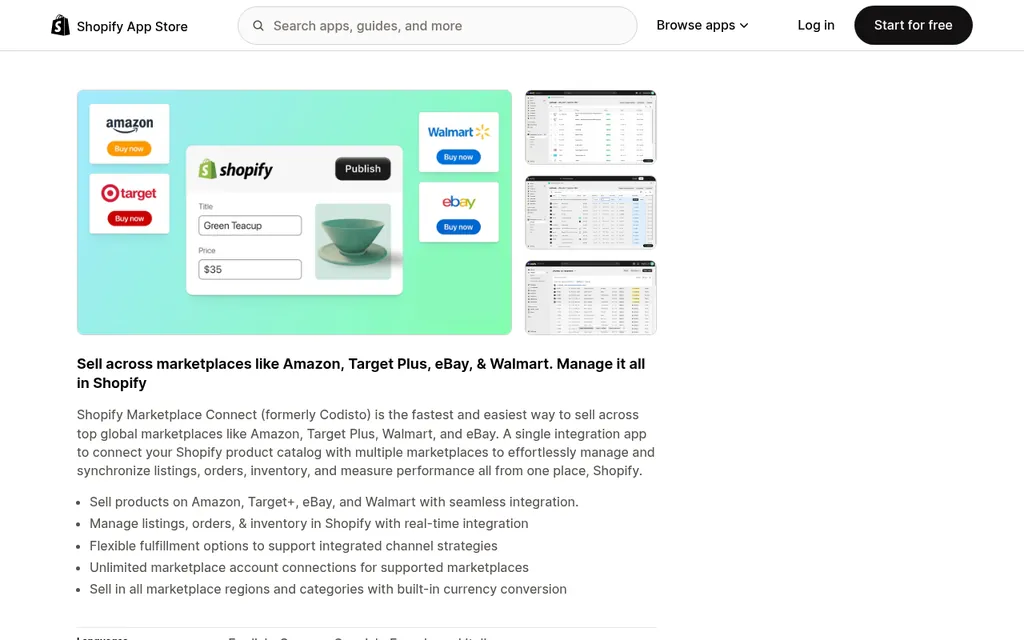
Shopify Marketplace Connect on the Shopify App Store
Many importing brands sell the same SKU on Shopify and through Amazon FBA, and that's where Shopify's numbers get confusing. Stock sitting in Amazon's fulfillment centers is Amazon's to count, and if you use Shopify Marketplace Connect to manage Amazon listings, Amazon orders can also show up in your Shopify sales reports. That means the sold per day number in Shopify might already include Amazon sales, or might not, depending on your settings.
Before you size a purchase order from Shopify reports alone, check which channels are in the number and where each pool of stock is counted. Our guide on how to consolidate Shopify and Amazon FBA purchase orders shows a simple way to plan one order for both channels without double counting, and the Amazon FBA ERP page explains how SupplyAutomate handles the shipment side for FBA sellers.
When To Add A Spreadsheet Or An Inventory App
Google Sheets
Google Sheets product page
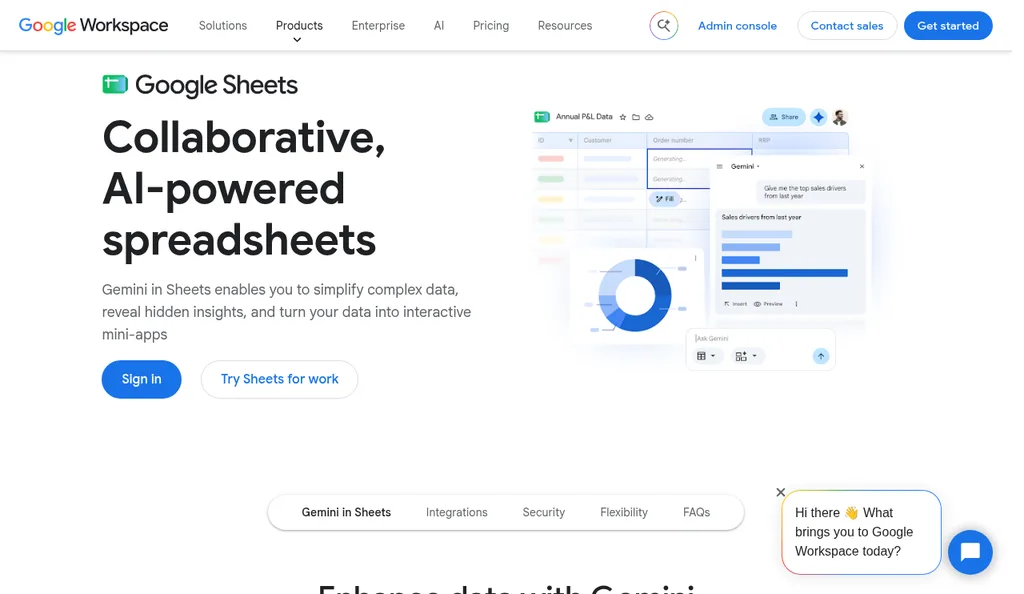
For most stores under a few hundred SKUs, Shopify plus a sheet in Google Sheets or Excel is enough. Export Available and Incoming from the Inventory page, paste in quantity sold per day from the report, and add columns for lead time, safety days, and reorder point, with a rule that turns a row red when Available plus Incoming drops below it. Our guide to moving from Excel to automated purchase order tracking covers the point where a sheet like this stops keeping up.
Prediko
Prediko homepage
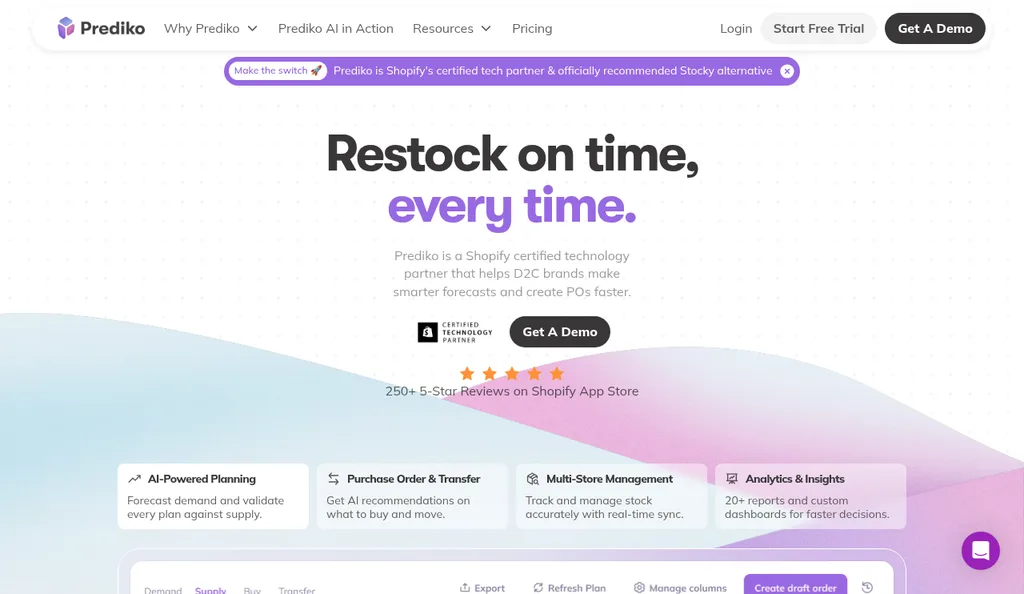
Prediko is an inventory planning app built for Shopify. Its Shopify App Store listing describes demand forecasting, replenishment alerts that lead to purchase orders, multi-location transfers, stock takes, and moving suppliers and purchase orders over from Stocky. When I looked in October 2026 the listing showed sales-based plans starting at $49 a month for stores under $100,000 in yearly sales, with a 14-day free trial, so it's a reasonable next step once reorder math by hand takes a morning every week.
Inventory Planner By Sage
Inventory Planner by Sage homepage
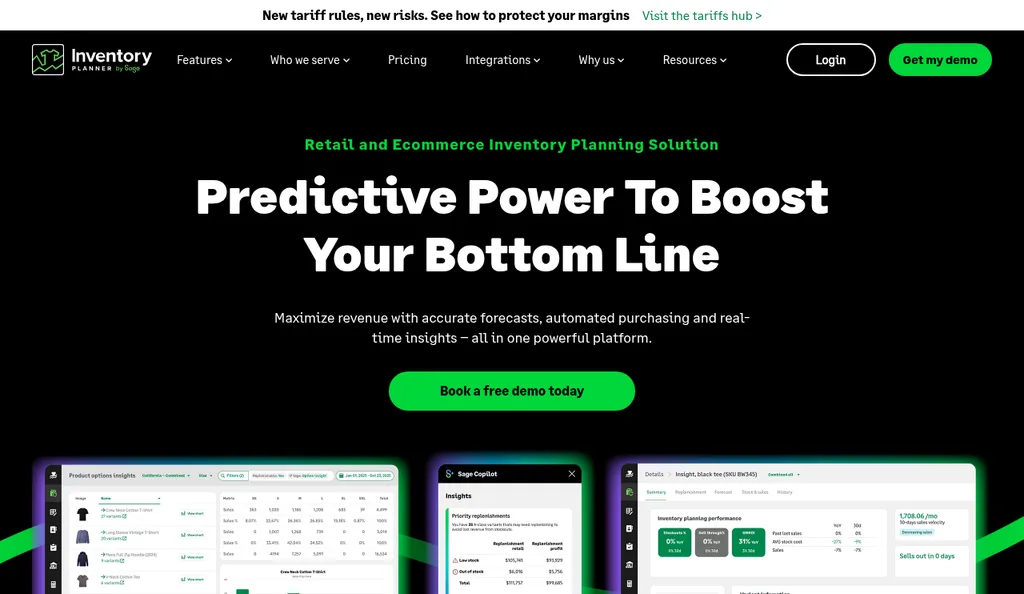
Inventory Planner by Sage is a heavier forecasting and purchasing tool. Its Shopify integration page says it imports your product and sales data and turns it into forecasts and replenishment recommendations that account for seasonality and lead times. Pricing is quoted on request based on the inventory volume you manage, so it fits brands with many SKUs or locations where forecasting is the real bottleneck. Our post on inventory management software cost compares what these tools tend to charge.
Where SupplyAutomate Fits
SupplyAutomate Lead Time Calculator And Purchase Order Tracking
SupplyAutomate lead time calculator with its default example
SupplyAutomate doesn't manage your Shopify stock, so Shopify stays the place where quantities, locations, and receiving live. Where it helps is the supply side that Shopify only partly covers. The free lead time calculator adds production, transit, and customs days with a safety buffer and returns the total lead time, reorder point, safety stock, and the latest date the next PO can go out, so the reorder point you store in Shopify has a real lead time behind it.
In the app, you can create purchase orders, upload the supplier invoice, packing list, freight bill, and customs entry, and have them read and filed on the order, while parcel and ocean container tracking shows where the shipment is. It works out landed cost per unit from factory price, freight, duty, and samples, which is the number to put into Shopify's cost per item, and exports to CSV or Excel. Plans are on the pricing page, the Shopify ERP page shows how it sits next to a Shopify store, and if you'd rather hand off supplier follow-up and freight entirely, our Outsourced Supply Chain Manager service runs purchase orders and shipments for you.
Common Shopify Inventory Mistakes
The most common one I see is receiving stock with a manual Adjust by instead of the purchase order's transfer. The units show up, but there's no link to the PO, no record of what was rejected, and nothing to compare against the supplier's invoice, so short shipments go unnoticed. Receiving on the transfer takes about the same time and leaves a trail you'll want when something's off.
The second is mixing up the states. Reordering based on On hand ignores units already committed to orders, and reordering on Available alone ignores what's Incoming, which is how stores end up with two containers of the same SKU. The third is leaving cost per item at the factory price, which makes the inventory value report and every margin number look better than they are. Our guide on landed cost per unit and the walkthrough for calculating Shopify landed cost fix that one.
Frequently Asked Questions
Does Shopify Have Built-In Inventory Management?
Yes. Shopify's admin tracks quantities per location and inventory state, and it now includes native purchase orders, inventory transfers with receiving, stock counts, adjustment history, and inventory reports. It doesn't include reorder points, forecasting, or landed cost allocation, so most importing brands add a spreadsheet or a planning app for those parts.
What Is The Difference Between On Hand And Available In Shopify?
On hand is every unit at a location, and it equals Available plus Committed plus Unavailable. Available is what customers can buy right now, Committed is set aside for unfulfilled and draft orders or outgoing transfers, and Unavailable covers stock held as damaged, quality control, or safety stock. Incoming units on a transfer or purchase order aren't part of either number until you receive them.
How Do I Receive A Supplier Shipment In Shopify?
Create the purchase order, mark it as Ordered, and create the linked inventory transfer from it. When the goods arrive, open the transfer and accept, reject, or cancel each line by quantity, and accepted units become Available at the destination. If only part of the order arrived, the transfer stays In progress until you receive the rest.
Is Stocky Still Available For Shopify Inventory?
No. Shopify's Stocky migration guide says Stocky stopped working on August 31, 2026, with read-only access for exporting data for at least 90 days after that. Shopify's native purchase orders, transfers, and stock counts cover much of what Stocky did, and planning apps like Prediko cover the suggested reorders.
Can SupplyAutomate Update My Shopify Inventory?
No. SupplyAutomate doesn't connect to Shopify, Amazon, or WooCommerce and doesn't read or change stock levels. It tracks purchase orders and shipments from the documents you upload, calculates landed cost per unit from factory price, freight, duty, and samples, and exports to CSV or Excel so you can update Shopify yourself.
Where I'd Start This Week
If your Shopify inventory feels messy, I wouldn't try to fix all of it at once. I'd start by checking which locations fulfill online orders, then look at one A grade product's adjustment history to see where its numbers have been changing. That usually tells you more about what's broken than any report. From there, receive your next supplier shipment through the purchase order's transfer instead of a manual edit, and update that product's cost per item with the real landed cost once the freight bill and customs entry are in.
After that, a short weekly routine does most of the work. Pull the Inventory sold daily by product report, compare Available plus Incoming against your reorder points, count your top sellers once a month, and write down the date each PO went out and the date its stock became sellable. If that routine starts eating a whole morning, that's the point where an app like Prediko or a tool for the supplier side earns its price, and our guide to whether ERP software is overkill for a small Shopify store is a good next read.
Related Guides
- How To Turn Shopify Reorder Points Into Purchase Orders
- 5 Best Ecommerce Inventory Management Software For 2026
- Shopify Supply Chain App Review: SupplyAutomate
- Best Stocky Alternatives For Shopify After The 2026 Sunset
- Best Purchase Order Software For Shopify In 2026
- Is Shopify Cost Tracking Enough For Landed Cost?
- How To Calculate Shopify Landed Cost: Factory Price To Unit Cost
- How To Consolidate Shopify And Amazon FBA Purchase Orders
- Reorder Point Formula For Importers (When To Buy)
- How To Calculate Safety Stock (Formula + Excel)
- How Much Does Inventory Management Software Cost In 2026?
- Is ERP Software Overkill For A Small Shopify Store?
- How To Reconcile A Supplier Invoice To A Purchase Order