The balance invoice from your factory lands on a Friday afternoon. It says $1,470 is due before the container leaves, the bank details on page two look slightly different from last time, and your bookkeeper has already typed it into Xero as a bill. Someone has to decide whether that bill is right before the money goes out, and in a lot of small brands that someone is whoever happens to open Xero first.
I ran an Amazon FBA and Shopify brand that grew to $3M ARR, and paying the wrong supplier invoice is one of the few mistakes that is really hard to undo. A wire or bank transfer to a factory rarely comes back. This guide shows how to set up a simple invoice approval workflow in Xero using the features you already pay for, what to check before anyone clicks Approve, and when an app like ApprovalMax is worth adding.
A quick product note before we start. SupplyAutomate does not connect to Xero, does not create or approve bills in Xero, and does not sync sales or orders from any store. It reads the supplier invoices, packing lists, freight bills, and customs entries you upload, keeps them on the purchase order, and exports clean CSV or Excel, which makes the checking step faster before you enter or approve the bill in Xero yourself.
TL;DR
- Xero's native flow is one approval step. A bill moves from Draft to Awaiting Approval to Awaiting Payment to Paid, and user roles decide who can do each part.
- Give the person who enters bills the Draft sales and purchases role, so they can create bills but can't approve them, and keep approval with one owner or a Purchases role user.
- Before approving, check the bill against the purchase order, what actually arrived, the supplier's bank details, and Xero's duplicate warning.
- Xero doesn't yet route bills by amount or supplier. It has said a customisable approval workflow is in development, and until it reaches your file, ApprovalMax is the common add-on for multi-step approval.
- Capture tools like Hubdoc and Dext get bills into Xero faster, but they don't decide whether a factory invoice is correct. That check still needs your PO and packing list.
Table of Contents
- How Bill Approval Works In Xero Today
- Step 1: Set User Roles So Entering And Approving Are Separate
- Step 2: Get Supplier Bills Into Xero As Drafts
- Step 3: Start From A Purchase Order
- Step 4: Check The Bill Before You Approve It
- Step 5: Approve And Pay
- When You Need Multi-Level Approval In Xero
- Apps That Add To The Xero Workflow
- A Worked Example With A Factory Balance Invoice
- Where SupplyAutomate Fits
- Common Mistakes With Xero Bill Approval
- Frequently Asked Questions
- Picking The Right Setup For Your Team
- Related Guides
How Bill Approval Works In Xero Today
In Xero, a supplier invoice is a bill. Every bill lives on one of a few tabs under Purchases, then Bills: Draft, Awaiting Approval, Awaiting Payment, and Paid. Approving a bill is what turns it from a draft into a real payable that shows up in your reports and in your payment runs.
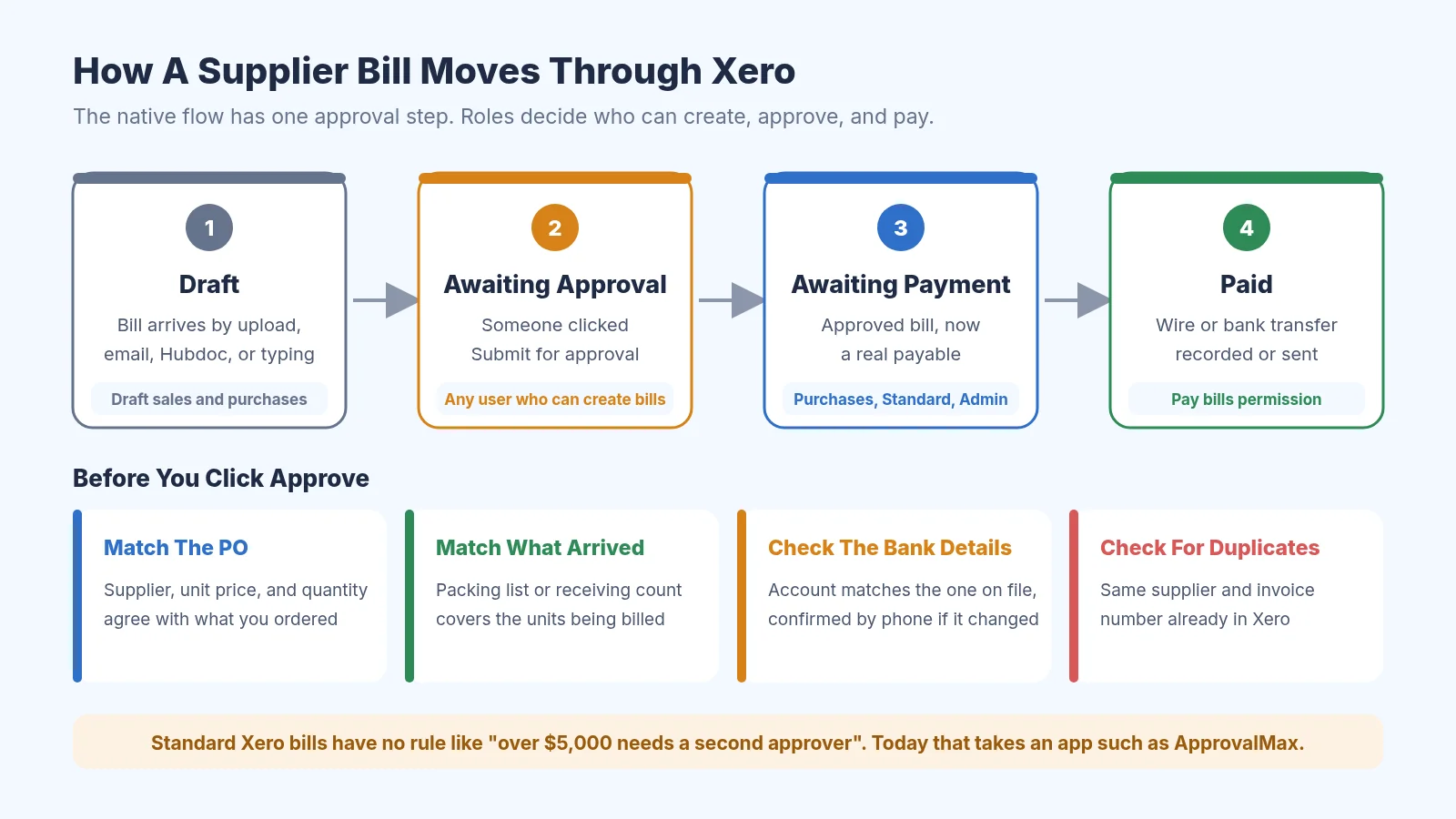
How a supplier bill moves through Xero, and what to check before approving
The native flow has a single approval step. Anyone with the right role can approve, and there is no built-in rule that sends a large bill to a second person. For a small team that's usually fine, as long as the person who enters bills and the person who approves them aren't the same person.
Step 1: Set User Roles So Entering And Approving Are Separate
Roles are the part of Xero most small sellers never touch, and they do most of the work in an approval workflow. You set them under Settings, then Users, and the Xero Central guide to user roles and permissions explains every option in detail.
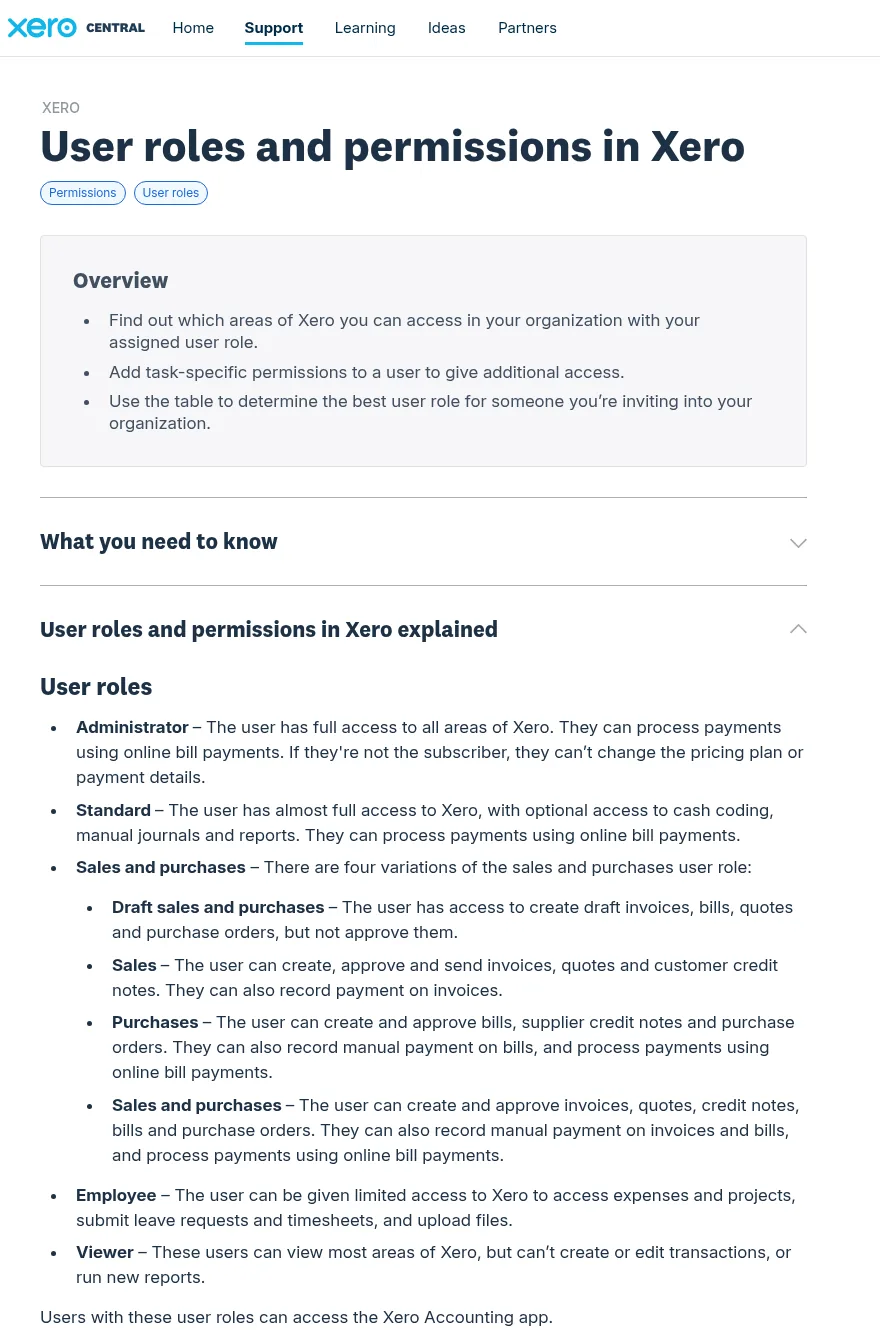
Xero Central article on user roles and permissions
The role to know is Draft sales and purchases. A user with it can create draft bills, invoices, quotes, and purchase orders, but they can't approve them. The Purchases role can create and approve bills, supplier credit notes, and purchase orders, and Standard and Administrator users can approve as well.
So a simple setup for a two or three person brand looks like this. Your bookkeeper or VA gets Draft sales and purchases and enters every supplier bill. You, or one trusted operations lead, keep a role that can approve. Xero also has a separate pay bills permission that can be set so someone can approve payments others have prepared but not their own, which is worth turning on once more than one person touches payments.
The one rule that matters most: the person who types in a supplier bill should never be the only person who can approve it and release the money. Roles in Xero are how you enforce that without buying anything.
Keep an eye on the permission to edit contact bank details too. Changing a supplier's bank account is the move in most invoice fraud, so limit it to the same person who approves bills.
Step 2: Get Supplier Bills Into Xero As Drafts
Every bill should start life as a draft, and Xero gives you a few ways to get it there. You can type it in, upload the PDF under Purchases, then Bills, or forward it to your organization's unique bills email address, which creates a draft bill with the details filled in and the file attached. The Xero Central guide to adding and tracking bills walks through each option.
The forwarding address is the easiest habit to build. Ask your suppliers and freight forwarder to send invoices to one inbox, forward each PDF to the Xero address, and every bill lands in the Draft tab with its source document attached. Hubdoc, which Xero owns, does a similar job if you want more control over how documents are captured and published.
If you're a first-time importer, also save the original PDF next to the purchase order outside Xero. Our guide on how to organize supplier invoices has a simple naming rule that makes the next step much easier.
Step 3: Start From A Purchase Order
The best approval check is one you set up before the invoice ever arrives. If you raise a purchase order in Xero when you place the factory order, you can later copy the approved PO into a bill, and the supplier, items, and prices carry across.
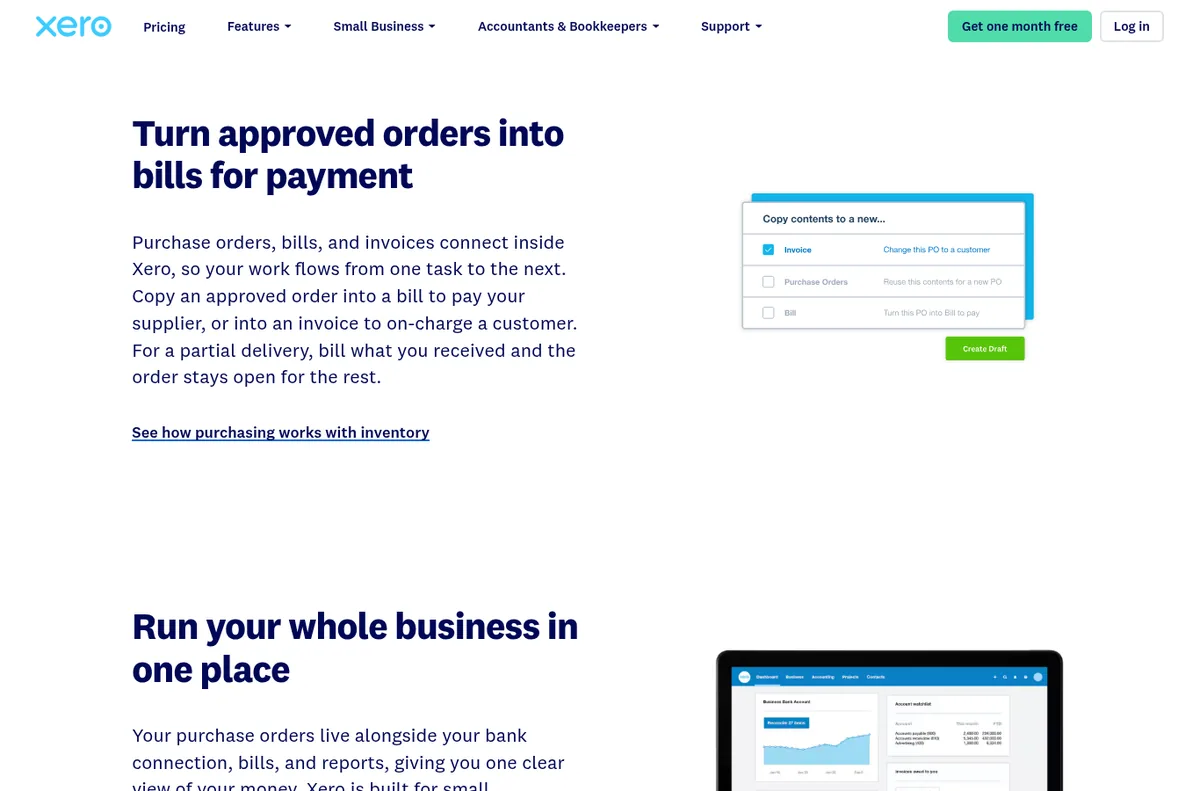
Xero purchase order software page
Xero's purchase order page explains that on a partial delivery you can bill what you received and leave the order open for the rest. That matters for importers, because factories often ship short or split an order across two containers. If you'd rather draft the order outside Xero first, our free purchase order creator produces a clean PO you can send to the factory and then recreate in Xero.
Step 4: Check The Bill Before You Approve It
This is the step where the money is actually saved. Open the bill in the Draft or Awaiting Approval tab and compare it against four things before you approve it.
- The purchase order. Supplier name, unit price, quantity, currency, and payment terms should match what you agreed. On a deposit and balance deal, confirm this is the balance invoice, because a deposit billed a second time is easy to miss.
- What actually arrived. The packing list or your receiving count should cover the units being billed. If 480 units shipped against a 500 unit order, the balance should reflect 480 or the PO should say why it doesn't.
- The bank details. The account on the invoice should match the one you have on file for that supplier. If it changed, call the supplier on a number you already had and confirm before paying.
- Duplicates. Xero warns you when a bill has the same reference and contact as one you already have. It's a warning only, so read it and don't click past it.
Our full walkthrough on how to reconcile a supplier invoice to a purchase order covers price, quantity, and freight differences in more depth. If you're paying a factory on deposit and balance terms, the 30/70 payment terms guide explains what each invoice should say, and for a first order from a new supplier on Alibaba, I'd pay through Alibaba Trade Assurance instead of wiring someone you've never worked with.

Alibaba Trade Assurance buyer protection page
Trade Assurance keeps the payment inside Alibaba's order protection, which matters most when you don't yet know whether the supplier's bank details are real. Once you've worked with a factory for a few orders, a direct wire becomes more reasonable, and the bank detail check above becomes your main protection.
Step 5: Approve And Pay
Once the checks pass, approving is quick. Xero's Add and approve a bill article shows both ways to do it: open a single bill from the Draft tab and click Approve and next, or tick several bills and approve them together.
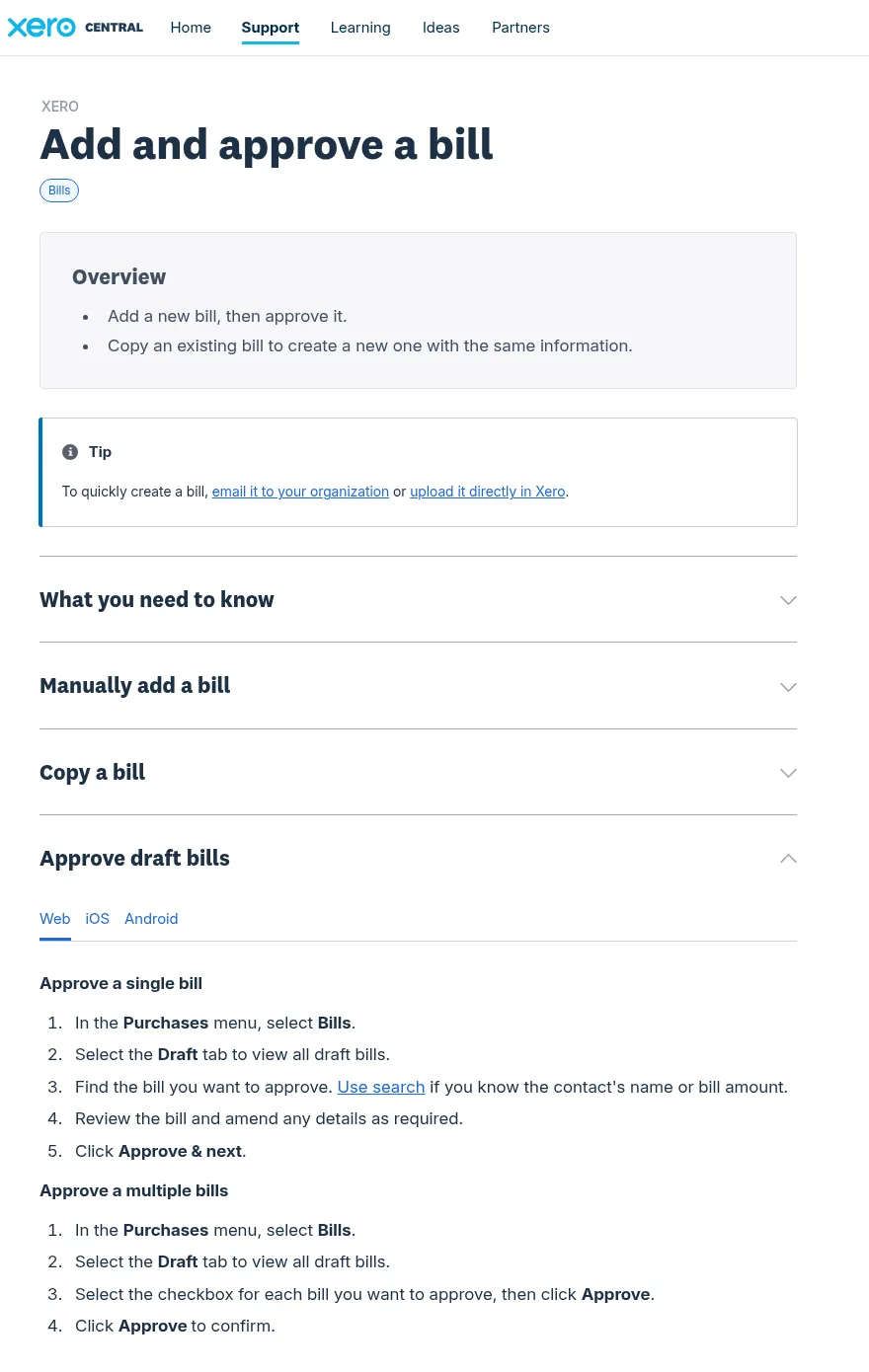
Xero Central article on adding and approving bills
Approved bills move to Awaiting Payment. From there you either pay through Xero's online bill payments where they're available to you, or send the wire or bank transfer from your bank and record the payment against the bill. I'd avoid bulk approving factory invoices, because each one is large enough to deserve its own look, and save bulk approval for small, recurring bills like software and utilities.
When You Need Multi-Level Approval In Xero
At some point one approver stops being enough. Maybe your operations lead should approve anything up to $5,000 and you want to see anything larger, or a partner wants to sign off on every new supplier. Standard Xero bills don't route by amount, supplier, or account today, so you either handle that by agreement or add an app.
Xero has said this is changing. On its official Product Ideas forum, the long-running request for multiple levels of bill approval is marked In development, and in September 2026 a Xero community manager wrote that the team is building a customisable bill approval workflow with rules by amount, supplier, account code, or submitter, plus sequential or parallel approvers and an audit trail.
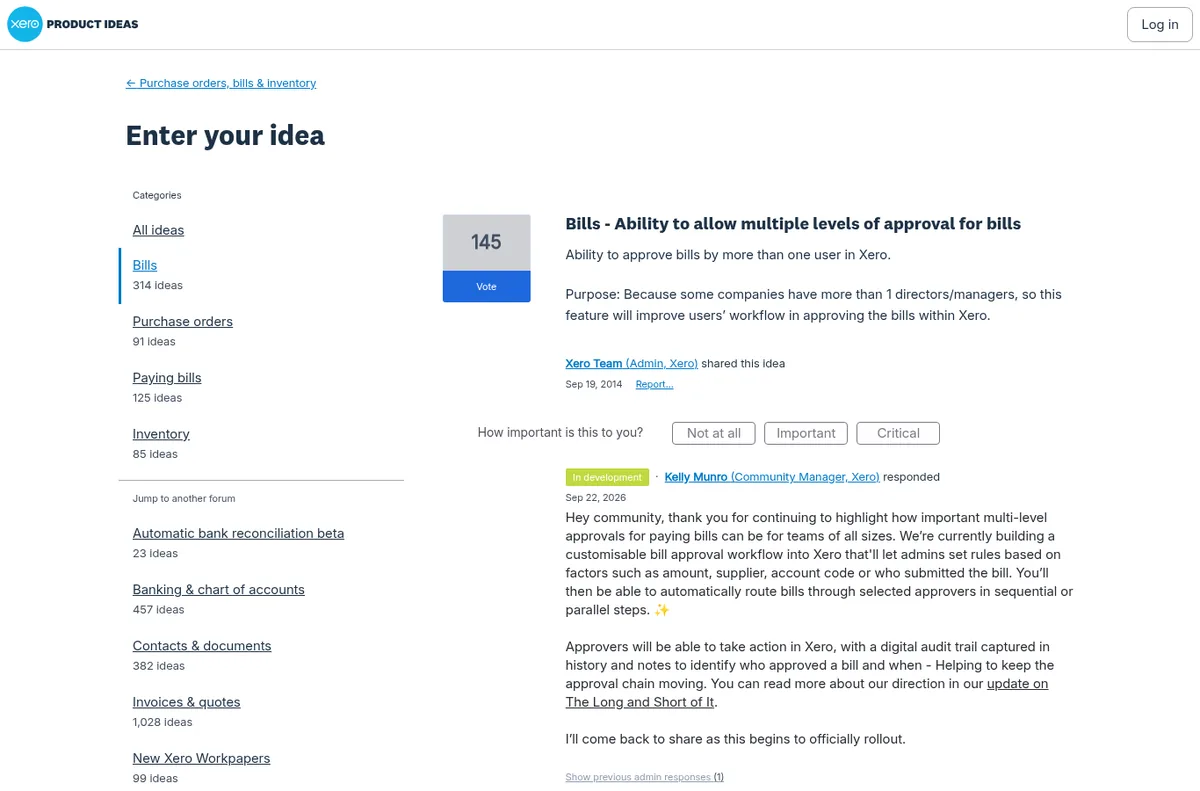
Xero Product Ideas thread on multiple levels of bill approval
I wouldn't plan around a date that Xero hasn't announced. Check the Product Ideas thread and your own Bills screen, and if you need amount based approval now, an add-on is the practical answer.
Apps That Add To The Xero Workflow
There are two kinds of apps here, and it helps to keep them apart. Approval apps decide who has to sign off and in what order. Capture apps read the invoice and get it into Xero as a bill faster. Neither one knows what your factory was supposed to ship.
ApprovalMax
ApprovalMax is the add-on most Xero users reach for when they need multi-step approval. Bills sync from Xero into ApprovalMax, move through the approval steps you set up, and go back to Xero once approved, and it also covers purchase order approval and bill to PO matching.
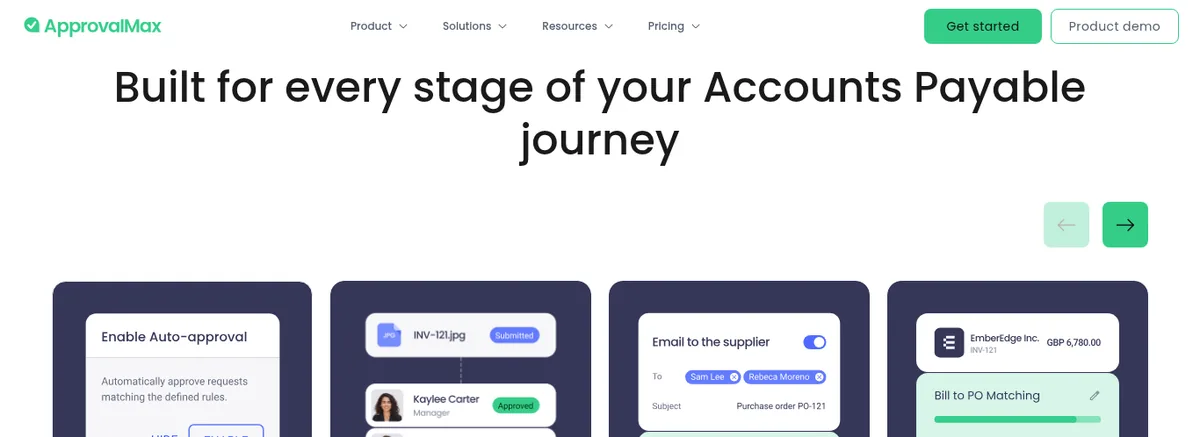
ApprovalMax features page
Its Xero integration page says approvers don't need to be Xero users, which is handy if a partner should approve bills without seeing your whole ledger. It's a paid app, so check current pricing against how many bills you actually approve each month.
Dext
Dext is a capture tool. You photograph a receipt or forward a supplier bill, Dext reads it and codes it against your Xero accounts, contacts, and tracking categories, and you review it before publishing to Xero with the source document attached.
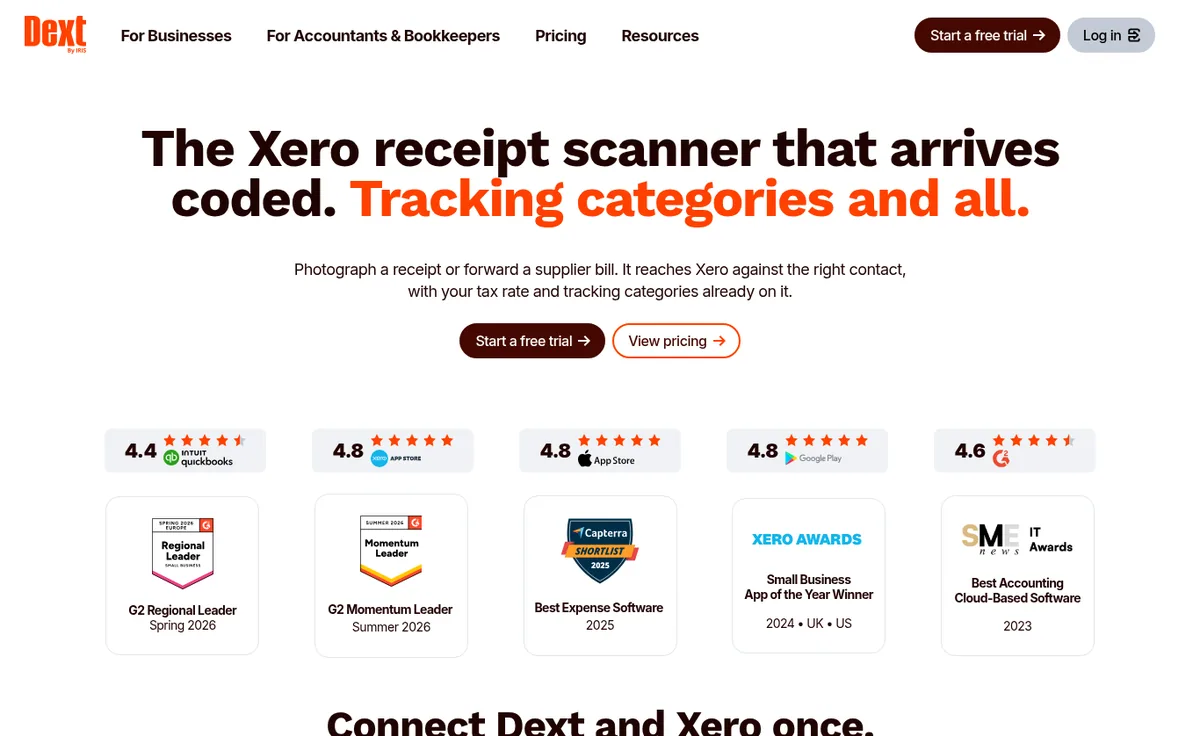
Dext Xero integration page
Dext's Xero integration page describes the setup, and it offers a 14 day free trial. It saves typing on a high volume of small bills, but it publishes what the invoice says, so a wrong quantity on a factory invoice still needs a human check against the PO.
Hubdoc
Hubdoc is Xero's own data capture tool. It pulls the supplier, amounts, invoice number, and due date from bills and receipts and publishes them to Xero with the original document attached.
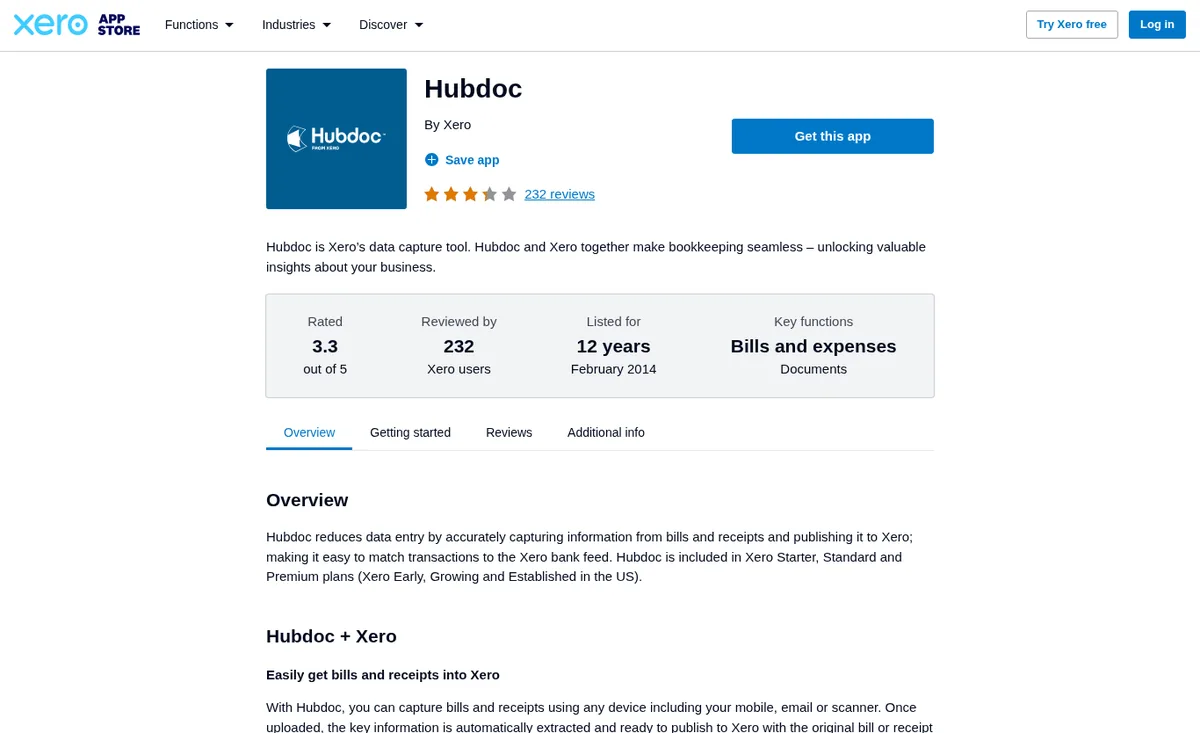
Hubdoc on the Xero App Store
The Hubdoc listing on the Xero App Store says it's included in the Early, Growing, and Established plans in the US, so try it before paying for another capture app. For a wider look at AP tools beyond Xero, see our roundup of accounts payable automation software for ecommerce.
A Worked Example With A Factory Balance Invoice
Say you ordered 500 units at $4.20 each on 30% deposit and 70% balance terms, so the order is worth $2,100. You paid the $630 deposit by wire when production started, and now the balance invoice arrives for $1,470. Your VA forwards it to the Xero bills address, it lands in Draft, and they submit it for approval.
When you open it, you pull up the PO and the packing list side by side. The packing list shows 480 units in 12 cartons, so the factory shipped 20 short. At $4.20 a unit that's $84, and the balance for what actually shipped should be $1,386, unless the factory has agreed to send the 20 units in the next shipment.
You also notice the bank account on page two ends in different digits than the one you paid the deposit to. That's the moment to stop. You call your factory contact on the WeChat or phone number you've used all along, confirm the bank change is real, and ask for a corrected invoice or a note on the short units, and only then approve the bill and send the wire.
Where SupplyAutomate Fits
SupplyAutomate does the document side of Step 4. You upload the purchase order, supplier invoice, packing list, freight bill, and customs entry for each order, and it reads the key values from each document and keeps them together on the order. That's what makes a short shipment or a changed balance easy to spot before the bill reaches the Awaiting Approval tab.
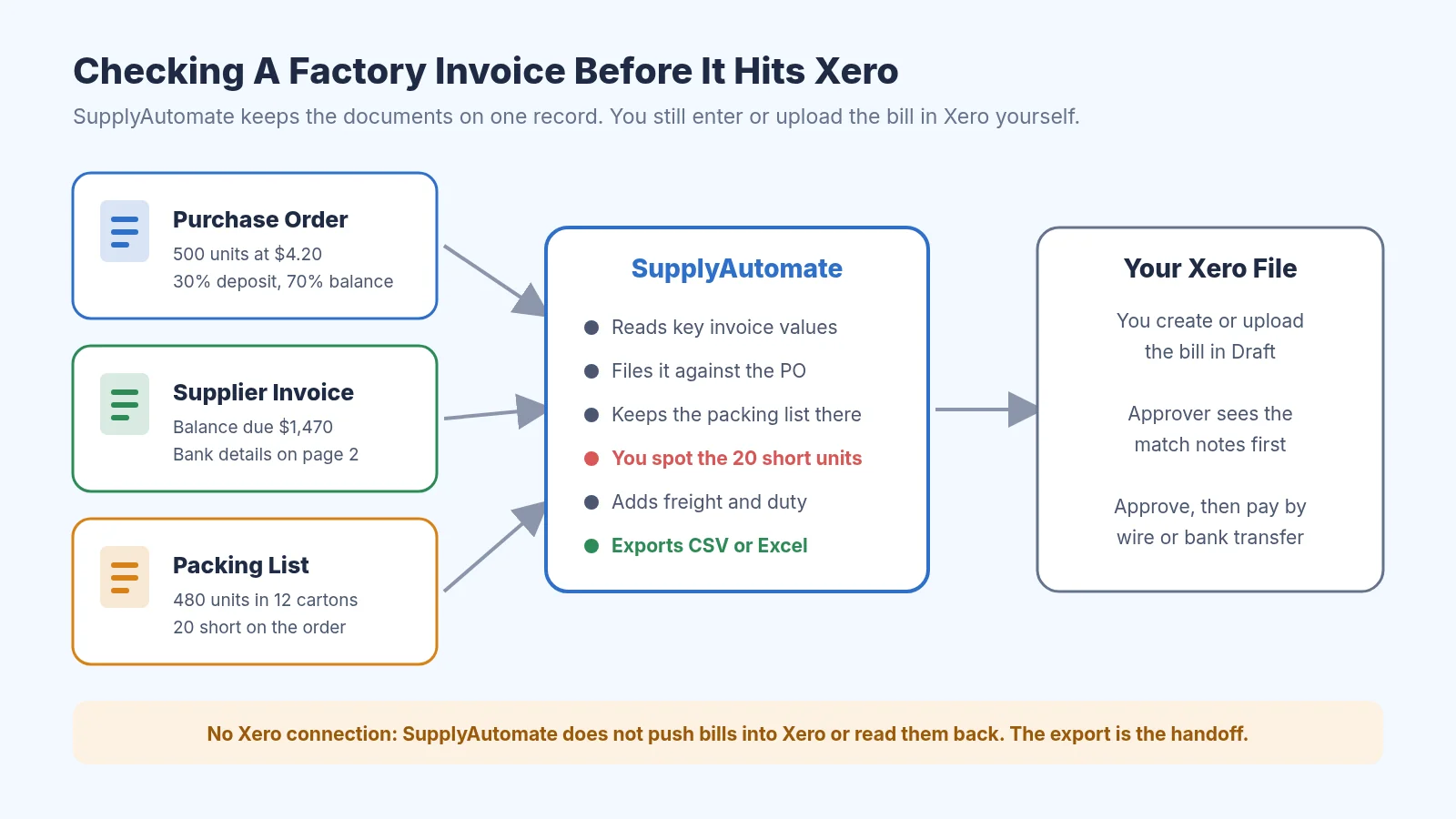
Where SupplyAutomate sits before a bill reaches Xero
It also tracks the parcel or ocean container and calculates landed cost from factory price, freight, duty, and samples, which you can export to CSV or Excel. SupplyAutomate has no Xero connection, so it won't push bills into Xero or read them back. You still create and approve the bill in Xero yourself, with the checked numbers in front of you.
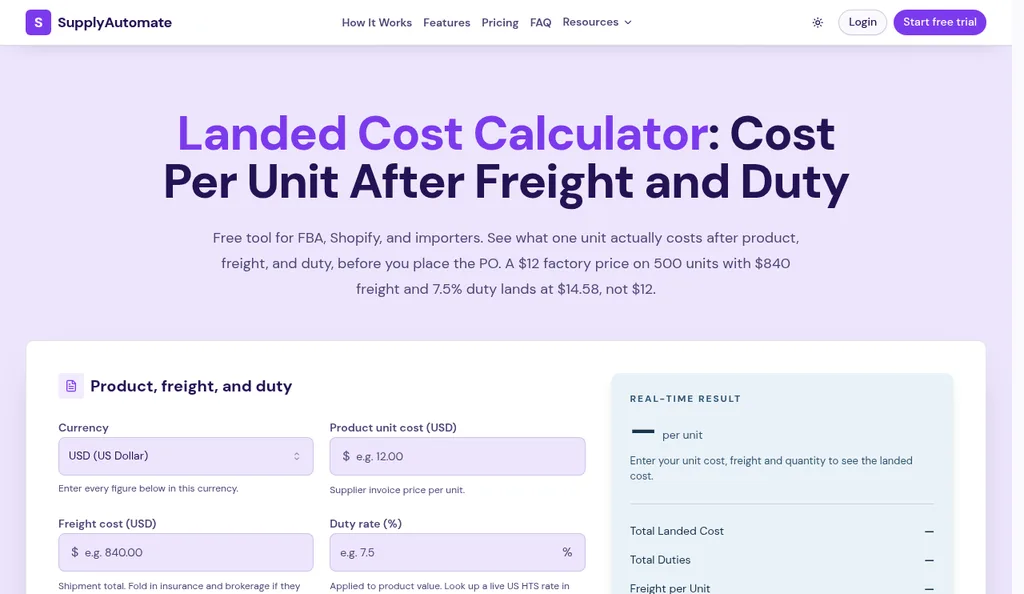
SupplyAutomate free landed cost calculator
If you want to try the math first, the free landed cost calculator and freight cost estimator need no account. The Shopify ERP page and Amazon FBA ERP page show how it fits each kind of store, pricing is on the site, and if you'd rather someone else chase suppliers and paperwork, our outsourced supply chain manager service handles it.
Common Mistakes With Xero Bill Approval
The most common one is giving everyone Standard or Administrator access because it's easier. That quietly removes the whole approval step, since the person entering bills can also approve and pay them. Fixing it takes five minutes in Settings, then Users.
The second is approving from the bill alone. A factory invoice that's internally consistent can still bill for units that never shipped or repeat a deposit you already paid, and only the PO and packing list catch that. The third is letting anyone edit supplier bank details, which is exactly what an invoice fraud email is hoping for.
The last one is posting freight and duty onto the factory bill to keep things tidy. Freight and duty usually come from your forwarder and customs broker, so post them as their own bills against those contacts. Our landed cost in QuickBooks guide explains the same allocation idea, and it carries over to Xero.
Frequently Asked Questions
Does Xero Have An Invoice Approval Workflow?
Yes, with one approval step. Bills move from Draft to Awaiting Approval to Awaiting Payment, and user roles decide who can create and who can approve. Xero has said a customisable multi-step approval workflow is in development, so check your Bills screen for updates.
Can Xero Require Two Approvers On A Bill?
Not with standard bills today. You can split who enters and who approves using roles, and use the pay bills permission so someone can't approve their own payments. For a true two step approval by amount or supplier, most teams add ApprovalMax or a similar app from the Xero App Store.
Who Can Approve Bills In Xero?
Users with the Purchases, Sales and purchases, Standard, or Administrator roles can approve bills. Users with Draft sales and purchases can create bills but can't approve them. Xero's user roles article lists the exact permissions for each role.
Does SupplyAutomate Connect To Xero?
No. SupplyAutomate doesn't connect to Xero, push bills, or sync anything with Xero. It reads the supplier documents you upload, keeps them on the purchase order, calculates landed cost from factory price, freight, duty, and samples, and exports CSV or Excel you can use when entering or checking bills in Xero.
Should I Approve The Deposit And Balance As Separate Bills?
Usually, yes. Most factories send a deposit invoice and a balance invoice, so enter each as its own bill against the same purchase order. That keeps it obvious which payment you've made and stops the deposit from being paid twice.
Picking The Right Setup For Your Team
If you're a solo seller or a team of two, Xero's roles plus the four checks in Step 4 are all you need. Give whoever enters bills the Draft sales and purchases role, keep approval yourself, and forward every invoice to the Xero bills address so nothing lives only in your inbox.
Once you have a few people approving or more than a handful of factory bills a month, look at ApprovalMax for multi-step approval and Hubdoc or Dext for capture, and keep an eye on Xero's own approval workflow as it rolls out. Whichever you pick, the approval is only as good as the documents behind it, so keep the PO, packing list, and invoice together for every order.
Related Guides
- How To Reconcile A Supplier Invoice To A Purchase Order
- How To Organize Supplier Invoices By Purchase Order For Importers
- How To Get Supplier Invoices Into QuickBooks Online
- Accounts Payable Automation Software For FBA And Shopify Importers
- Best Accounts Payable Automation Software For Ecommerce
- AI Invoice Matching Software For Ecommerce And FBA Sellers
- Best Purchase Invoice Processing Software For Shopify And Amazon FBA
- 30/70 Payment Terms With Chinese Suppliers Explained
- Landed Cost In QuickBooks: Allocate Tariffs And Freight To SKUs
- Best Supply Chain Control Tower Software For E-Commerce